1. Getting started
Install SwiftBiu and keep it in the menu bar, then grant Accessibility permission when the app prompts you. The five interactive scenes below are the same real workflow simulations used on the homepage: choose one to see its trigger, action, and result before configuring the details.
Reference guide
The macOS Context Actions Workflow Guide
A context action workflow starts with the payload already in front of you. Choose the input first, then choose the lightest trigger and the route that returns a useful result to the app you are using.
| Input | Trigger | Typical route | Best when |
|---|---|---|---|
| Selected text | Toolbar, shortcut, or gesture | Translate, search, format, AI, or plugin | The app exposes a normal text selection |
| Screen region / OCR | OCR shortcut, then draw a region | Recognize locally, then copy or run a text action | Text is visible but not selectable |
| File | Select, drag, or use a file shortcut | Compress, convert, share, reveal, or route to a plugin | The file is already in Finder or another file surface |
| App context | The same shortcut or gesture | Inherit global rules or use a per-app route | Safari, Xcode, Finder, or another app needs different behavior |
| Plugin input | Toolbar, shortcut, or an upstream workflow | JavaScript action or HTML web extension | Built-in actions do not express the final step |
Start with the payload
Use selected text when the app exposes it. Use OCR when the words are visible but not selectable. Use file actions when the object is a file, and use the clipboard when the next step is paste, open, or hand-off.
Add routing only where it helps
Keep a global shortcut as the baseline, then add drag directions or per-app rules when the same input should behave differently. Extend the last step with a plugin instead of rebuilding the trigger.
A practical selection checklist
- 1. Can the source be selected? Start with Text actions.
- 2. Is it visible but not selectable? Start with OCR.
- 3. Is the payload a file? Use File actions or a drag route.
- 4. Does behavior change by app? Add an App rule.
- 5. Is the final step custom? Hand the payload to a Plugin.
For implementation examples, continue to Plugin scenarios. For the full setup sequence, use the Triggers & rules, App configurations, and Extensions sections below.
Start & workflows
Real SwiftBiu text, AI, image, and file workflows on macOS.

Draw SwiftBiu icon



 10:24
10:24
south Drag down to download
SwiftBiu — context actions for text, files, OCR & plugins.
SwiftBiu — 上下文动作平台,覆盖文本、文件、OCR 与插件。
Frame text on screen with a shortcut
Real SwiftBiu text, AI, image, and file workflows on macOS.
Open SwiftBiu from the menu bar
The menu bar popover is the control center for setup and management; everyday actions still happen inside the app you are using.
- dock_to_right Pinned actions and extensions: launch a favorite or open its configuration.
- settings Settings (⌘,): manage triggers, toolbar appearance, app rules, and extensions.
- power_settings_new Quit SwiftBiu (⌘Q): stop the menu bar app and all active triggers.
route Core workflow
2. Triggers & rules
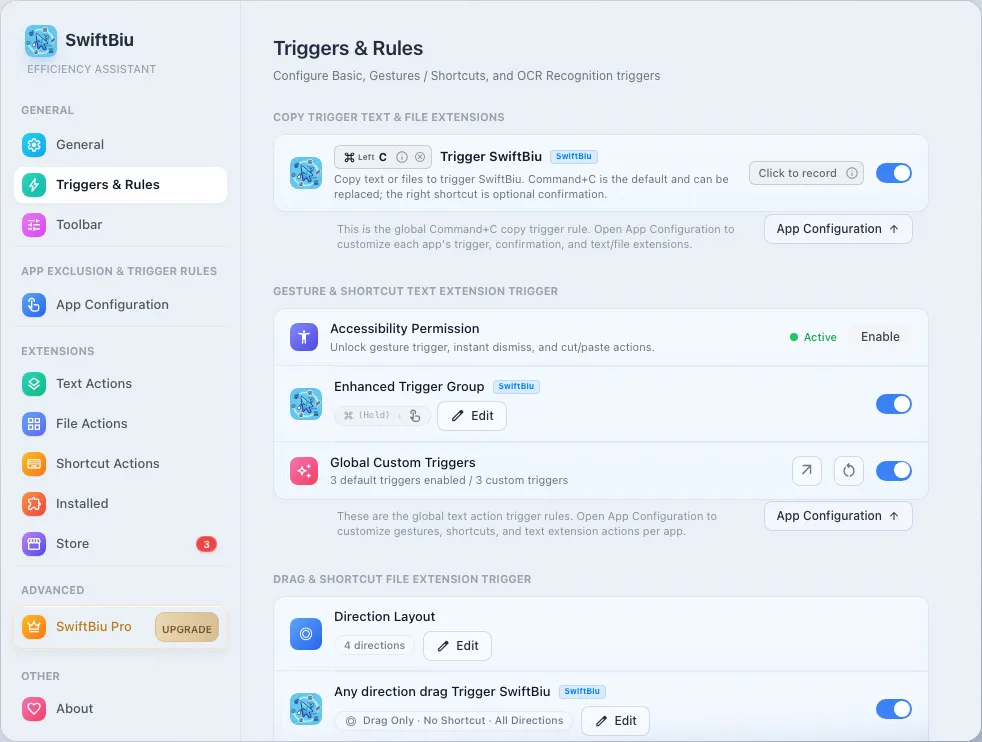
Choose how SwiftBiu is invoked, then define how each text, image, or file payload should be routed. Global copy behavior, gestures, shortcuts, drag routes, and OCR keys become the baseline for every app and can be backed up through iCloud.
Option smart trigger
SwiftBiu uses Command+C by default. After granting Accessibility permission, record Option directly in the title shortcut recorder—or choose another modifier that better fits your habits.
Configure the global rules
Use the settings panel to decide which events invoke SwiftBiu, which action runs, and when an app-specific rule should override the global default.
Copy triggers and enhanced shortcuts
Use Command-C, replace it with a custom shortcut, or require a confirmation shortcut before the toolbar appears.
Single Option & sequential modifier triggers
Tap single Option key or sequential keys ⌥(Left)+⌘(Left) to instantly trigger the floating toolbar or target action.
Smart Payload hotkey dispatching
The same hotkey triggers translate for text, compress for images, and AirDrop for files.
Contextual app routing
Let one app inherit global behavior, another app run a plugin directly, and a noisy app stay silent.
Copy triggers
- Choose whether copying shows SwiftBiu or runs a specific action directly.
- Configure system copy, enhanced copy, confirmation shortcuts, and the default trigger action.
Gesture shortcuts
- Configure double-tap, left swipe, right swipe, Shortcut + Gesture, and Gesture + Shortcut globally.
- Bind quick triggers to the SwiftBiu toolbar, built-in actions, JavaScript plugins, or web extensions.
Drag-and-drop quick triggers
- Configure global file drag directions, 4/8-way radial triggers, drag timing, and default file actions.
text_fields Core workflow
3. Text actions
Select text in Mail, Safari, Notes, editors, or chat apps and the native toolbar appears beside the selection. Run an action there, or bypass the toolbar with a dedicated shortcut or gesture.
touch_app Basic Usage
widgets Built-in Actions
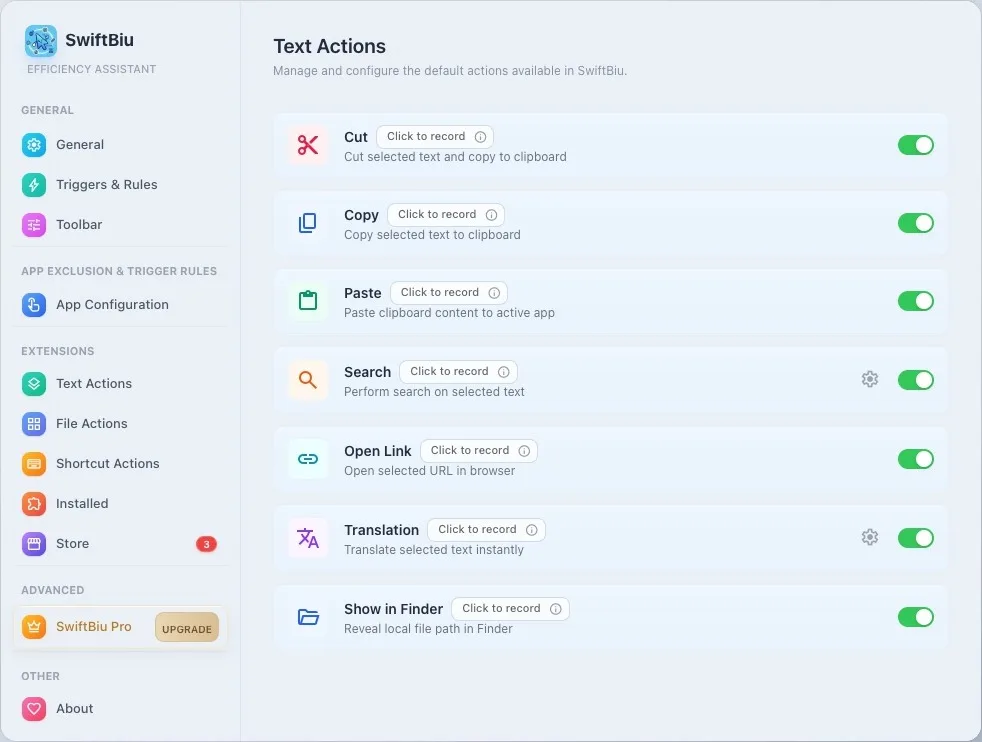
SwiftBiu comes with several core productivity tools:
info Each action can be toggled individually in the Built-in Extensions settings.
Translate, search, copy, cut, paste
Use built-in actions for translation, search engines, link opening, clipboard helpers, and text formatting without switching apps.
AI text and image actions
Run AI rewrite, prompt-driven processing, Gemini-style actions, or text-to-image tools from the same toolbar.
Plugin-powered text workflows
Send selected text into JavaScript plugins or richer HTML web extensions, then paste output back or show an interactive result.
Dedicated shortcuts & dynamic icons
Bind built-in actions to shortcuts with SF Symbol bounce, rotate, and pulse animation feedback and dynamic icon states.
translate Core workflow
Translation & Multi-Source Services
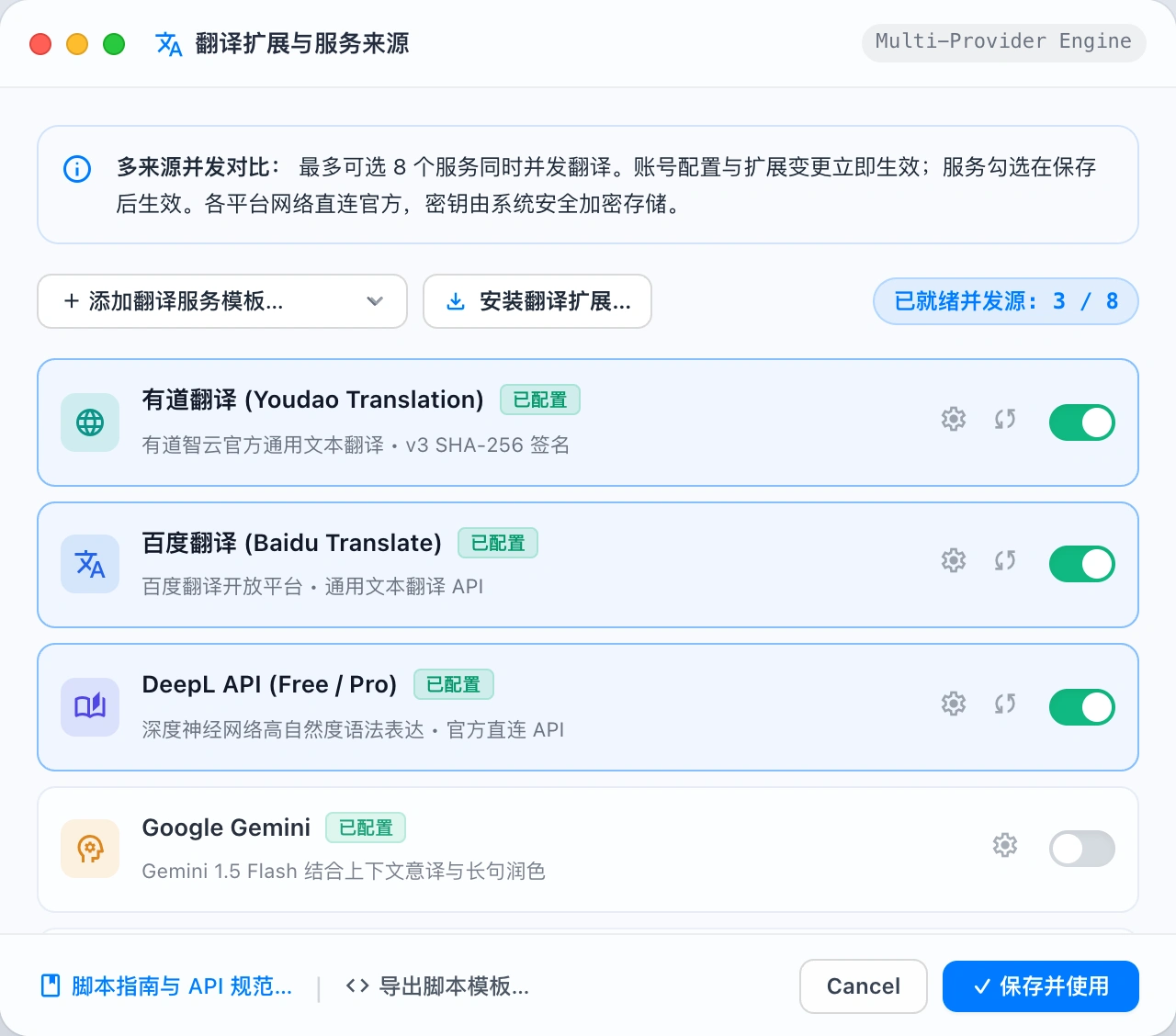
Select text to instantly pop up translation cards with speech, independent copying, and one-click original text replacement. Connect Youdao, Baidu, Azure, DeepL, and Gemini to compare translations in parallel or stacked, or export a template to hook up your own local LLMs and private endpoints.
checklist Translation Workflow & Usage Guide
Select text and click the translate toolbar icon, or press your configured shortcut (default ⌥T).
Multi-Source Parallel Queries: When multiple engines are enabled, SwiftBiu dispatches requests concurrently with instant responses.
Side-by-Side & Stacked Comparison: Freely toggle between horizontal and vertical layouts to compare wording nuances.
Independent Copy & Speech: Each card includes one-click translation copy and text-to-speech pronunciation.
One-Click In-Place Replacement: Click 'Replace ↵' to overwrite the selected text in your editor with the translated text.
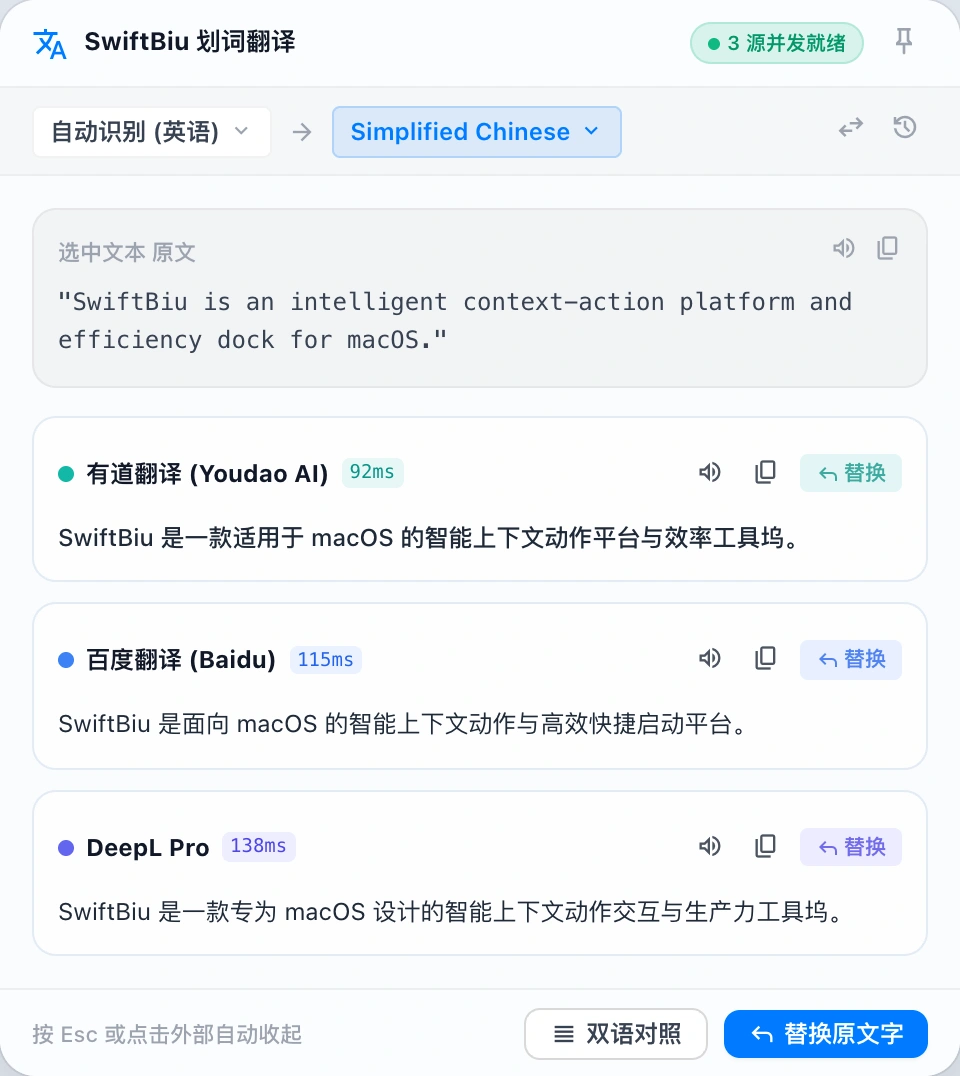
Quick Source Management: Click 'Manage Sources' at the top right to jump directly into credentials setup.
settings Translation Preferences & Credentials Setup
In Preferences -> Built-in Actions -> Translation, manage your translation engines, default target language, and API keys.
Select-to-Translate & In-Context Actions
Select text and click the translate toolbar icon or press a shortcut (like ⌥T) for instant translation. Supports individual card copying, text-to-speech, and directly replacing the highlighted original text with the translated output.
Native Major Translation & AI Integrations
Out-of-the-box support for Youdao AI Cloud (v3 signature), Baidu Translate, Azure Translator, DeepL, and Google Gemini, as well as native macOS Shortcuts and custom HTTP APIs.
Multi-Source Parallel Comparison
Select multiple translation providers simultaneously to dispatch queries in parallel. View side-by-side or stacked results to compare nuances and select the best phrasing effortlessly.
Zero Intermediaries & Hardware-Level Encryption
All network requests travel directly from your machine to official provider endpoints. App IDs and secret keys are securely stored using macOS Keychain or Windows DPAPI hardware-backed encryption.
Export Templates for Private Models
Export standard .swiftbiux packages in one click. Hook into internal company translation gateways, locally hosted Ollama / vLLM, or custom LLM APIs with just a few lines of JavaScript.
Linked Developer Guide & API Spec
In-app translation settings and source management provide direct access to the live Translation Script & API Specification documentation on the official website for schemas and code samples.
hub Supported Platforms & API Setup
SwiftBiu uses your own platform credentials and free quotas without charging markups. Click the links below to create accounts and get keys directly from official consoles:
| Platform / Service | Required Credentials | Features & Free Quota | Console & Docs |
|---|---|---|---|
| Youdao Translation | App ID & App Secret | Youdao AI Cloud text translation with v3 SHA-256 signing; natural phrasing and specialized vocabulary with new user trial credit | 控制台open_in_new |
| Baidu Translate | APP ID & Secret Key | General translation API, highly reliable with generous monthly free character quotas on standard tier | 开放平台open_in_new |
| Azure Translator | Subscription Key & Region | Microsoft Cognitive Services Translator with comprehensive multilingual support and 2 million free characters per month | Portalopen_in_new |
| DeepL | API Key (Free / Pro) | Industry-leading natural language translation quality with 500,000 free characters per month on Developer Free plan | API Keysopen_in_new |
| Google Gemini | API Key | Google LLM multilingual reasoning, prompt-driven translation with contextual nuance and free rate tier | AI Studioopen_in_new |
| Custom Script API | Custom JS Script / URL | Freely connect local Ollama/vLLM instances, corporate translation gateways, or custom LLM endpoints with streaming support | 开发文档arrow_forward |
code Looking to connect your own LLMs or internal translation APIs?
Explore the official Translation Script & API Specification to learn how to build .swiftbiux extensions with manifest schemas, error codes, and streaming examples.
folder_open Core workflow
4. File actions
Authorize the folders you want SwiftBiu to use, then select or drag a file. Run a compatible action from the toolbar or throw the file toward a configured 4/8-direction route.
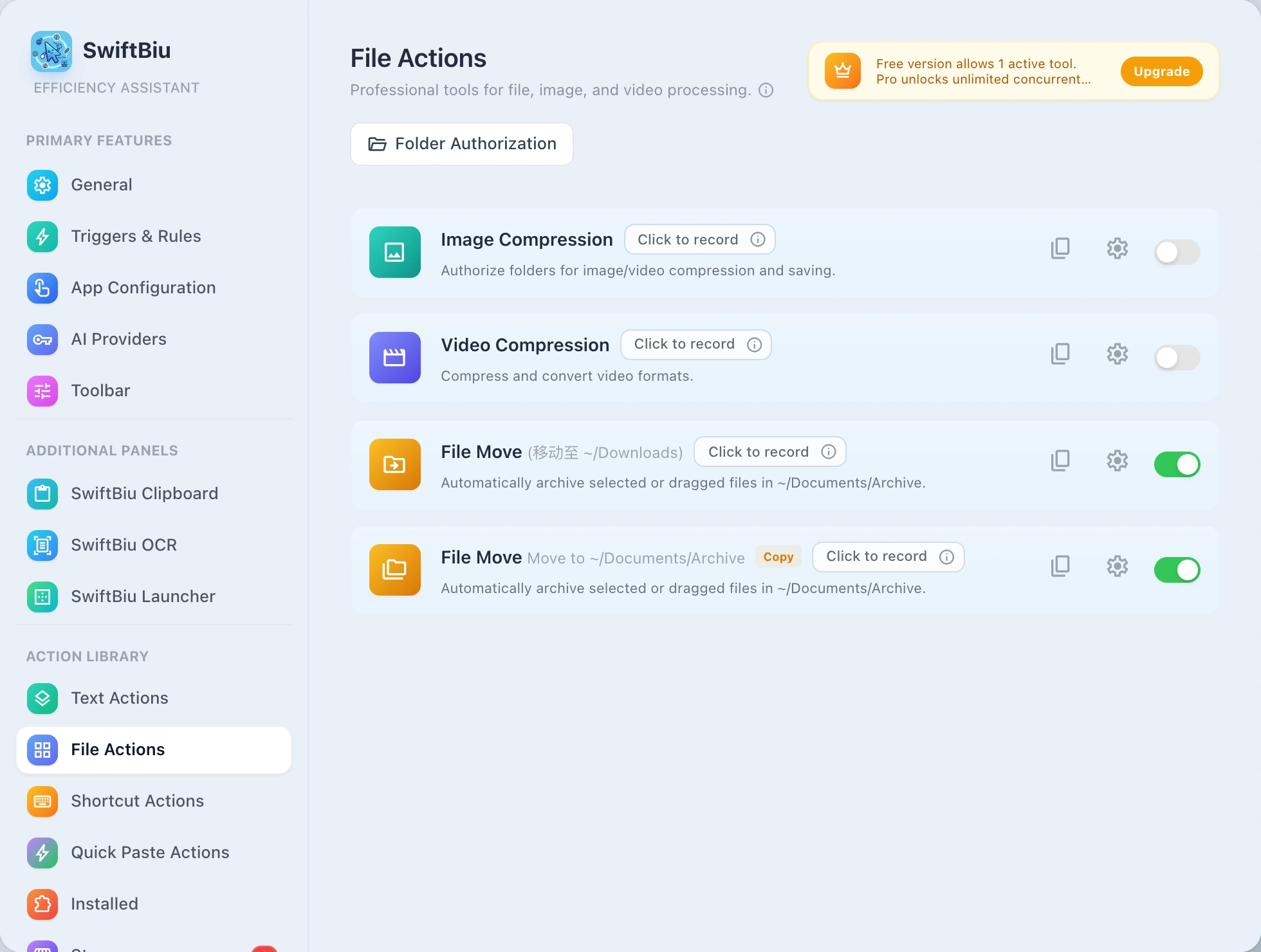
Authorize the Target Folder Root Directory
Due to macOS App Sandbox security mechanisms, before running file actions (such as image compression, format conversion, or renaming), the essential first step is to authorize the target folder root directory. Authorizing your home directory (~) once covers Desktop, Downloads, Documents, Pictures, and iCloud Drive, avoiding repeated prompt requests.
Folder Authorization
Grant access to a parent folder so SwiftBiu can reuse permissions for files inside it.
Authorizing your home directory once covers Desktop, Downloads, Documents, Pictures, Movies, Music, and iCloud Drive, avoiding repeated prompt requests.
Authorized Folders
Image and video compression
Compress one file or a batch and watch progress, output size, saved ratio, and generated files.
Convert images and remove backgrounds
Use built-in file actions for image format conversion and image background removal when those actions fit the selected file type.
Share and reveal files
Send files through AirDrop, system share, Reveal in Finder, Open With, or other system integration actions.
4/8-direction drag routes
Map file drag directions to different actions. You can combine drag timing with shortcuts and customize routes per app.
~/Downloads, ~/Documents/Archive). Click the copy icon next to the extension (content_copy) to create multiple path presets for one-click archiving!
document_scanner Core workflow
5. OCR capture & recognition
When text cannot be selected, trigger OCR and draw a screen region. SwiftBiu recognizes the content locally, then lets you copy, translate, summarize, or pass it into another action.
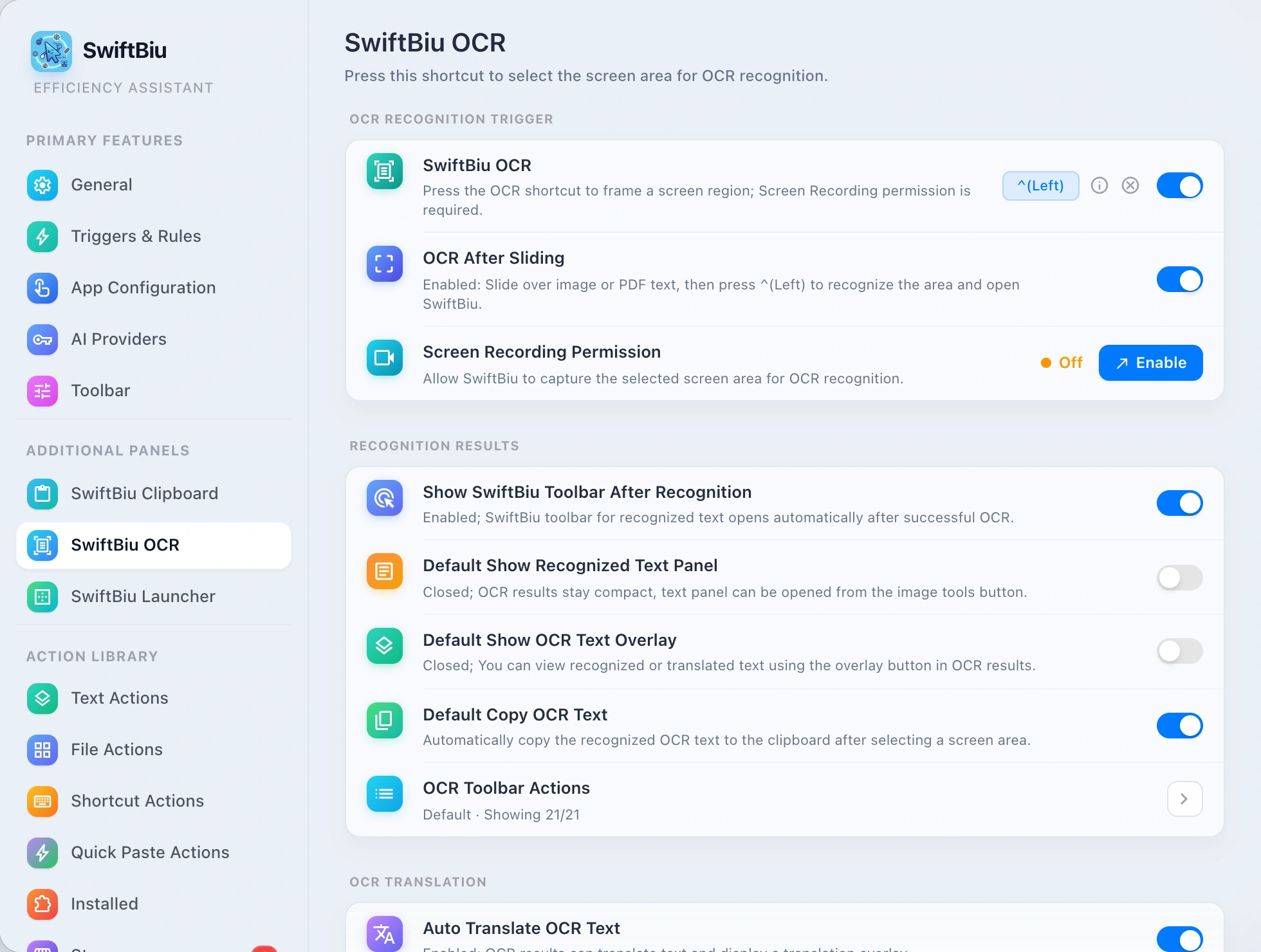
Region selection
Press the OCR shortcut, draw a rectangle, and let SwiftBiu recognize the text inside that screen area.
Copy or translate automatically
Choose whether recognized text should be copied, translated, or shown for another action.
Route OCR text to plugins
Treat OCR text like selected text: send it into text actions, AI workflows, or your own SwiftBiuX plugins.
Core workflow
SwiftBiu clipboard
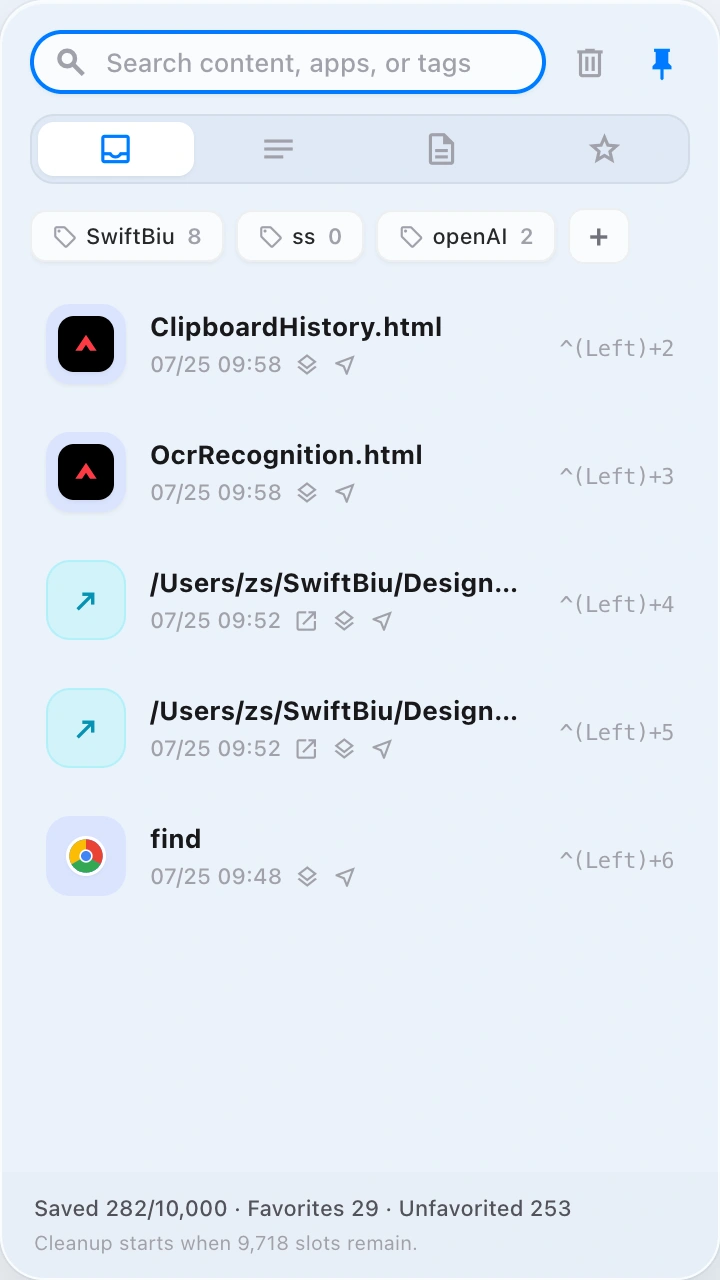
Invoke the clipboard via custom shortcut keys. Double-click to paste, or pass text, images, videos or files to the matching SwiftBiu extension for further processing.
checklist Operating Instructions
Enter a custom shortcut key in SwiftBiu clipboard settings, and use it to summon the clipboard panel anytime.
Place the cursor in the input box, search box, or editor, and press the configured shortcut key.
Double-click the text or image in the clipboard to quickly paste it into the current input area.
Select the clipboard content to call the corresponding extension: fast text translation, image compression or format conversion, and fast video compression.
After the clipboard recognizes the local file or text file path, you can execute "Open with specified application".
Configure applications by suffix: Preview for images, Xcode for Swift projects, and VS Code for JS/TS code.
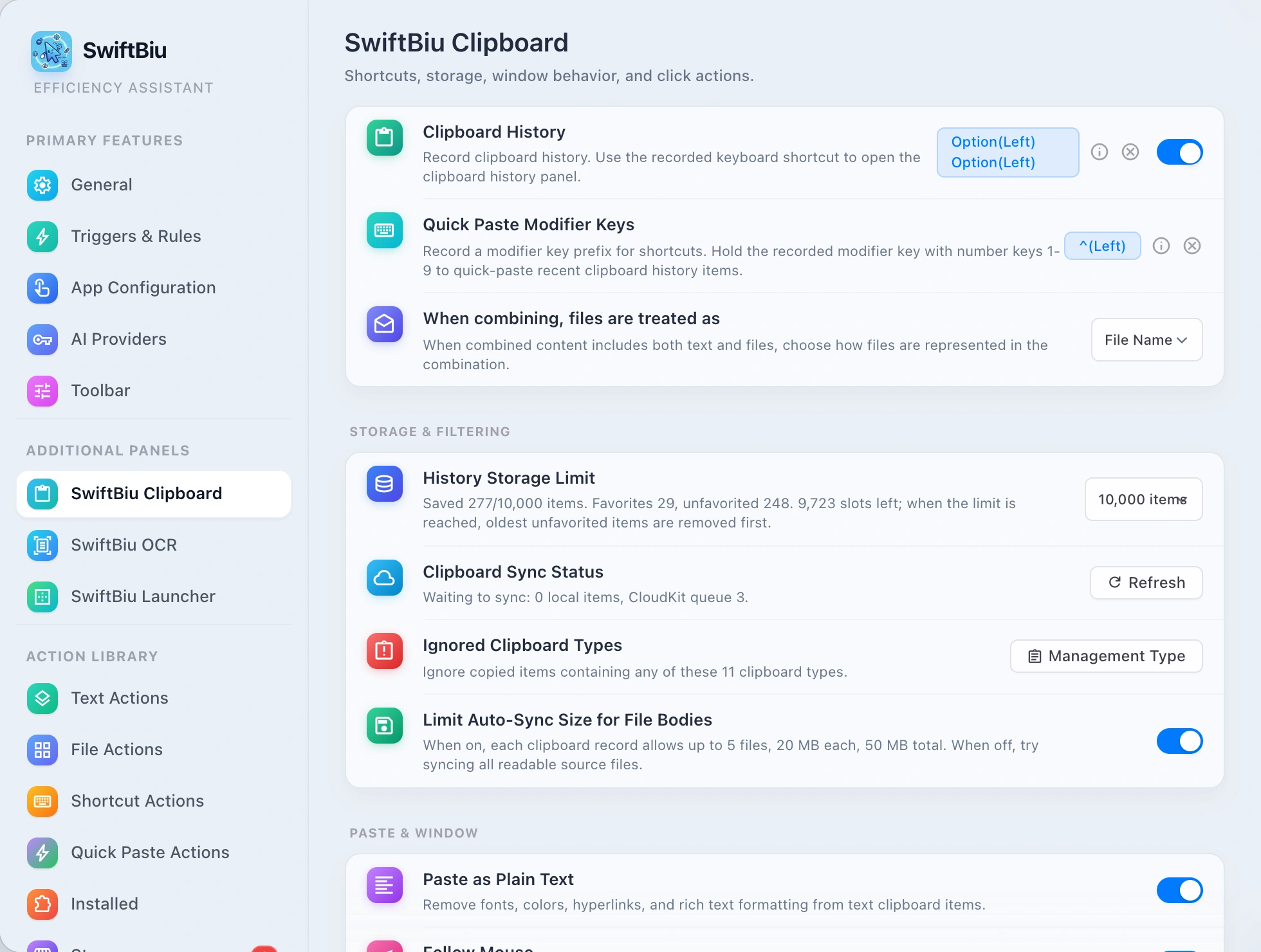
tune Clipboard preference support configuration options feature summary
In the Clipboard Preferences page, you can fully customize the shortcut recall, storage filtering, paste format and click response:
Shortcut keys and fast paste
-
Keyboard Wake-up Shortcut: Record and bind a global wake-up shortcut (default double-click
Option(Left)). -
Quick Paste Modifier Key: Hold down the prefix modifier key and press number keys
1~9to instantly paste history items without positioning the cursor. - Mixed combination expression: When the copied content contains both text and files, you can specify the file to be presented as "file name", "file path" or "file content".
Storage capacity and sensitive filtering
- History Limit Management: Supports storing up to 10,000 items. Once the limit is reached, "Favorites" are intelligently protected, and the oldest unfavorited items are removed first.
- Ignore specific clipboard types: Customize to add and manage 11 masked data types (such as password managers, sensitive binary data, etc.).
- Automatic file synchronization protection: Limit file synchronization size (maximum 5 files per file, 20MB individually, 50MB total protection).
Paste formatting and window behavior
- Plain text paste switch: Automatically strip fonts, colors, hyperlinks and HTML rich text formatting from text to maintain clean output.
- The window follows the cursor: when you press the shortcut key to bring up the panel, it is automatically positioned next to the current mouse pointer, and the selection is quickly absorbed.
- Automatic collection of high-frequency items: When repeated copying or pasting reaches the set number of times (such as 3/5 times), it will automatically be classified into collections.
Click-to-response and combined export
- Click the combination order: When selecting multiple historical combinations, you can splice and export according to "copy time from old to new" or "new to old".
- Image and file click response: Customize the action (preview/copy/paste) when clicking on the image preview or file icon.
- Specify application linkage to evoke: After the local text/file path is recognized, you can configure it to be opened by default using VS Code/Xcode/Preview.
rocket_launch Core workflow
SwiftBiu Launcher
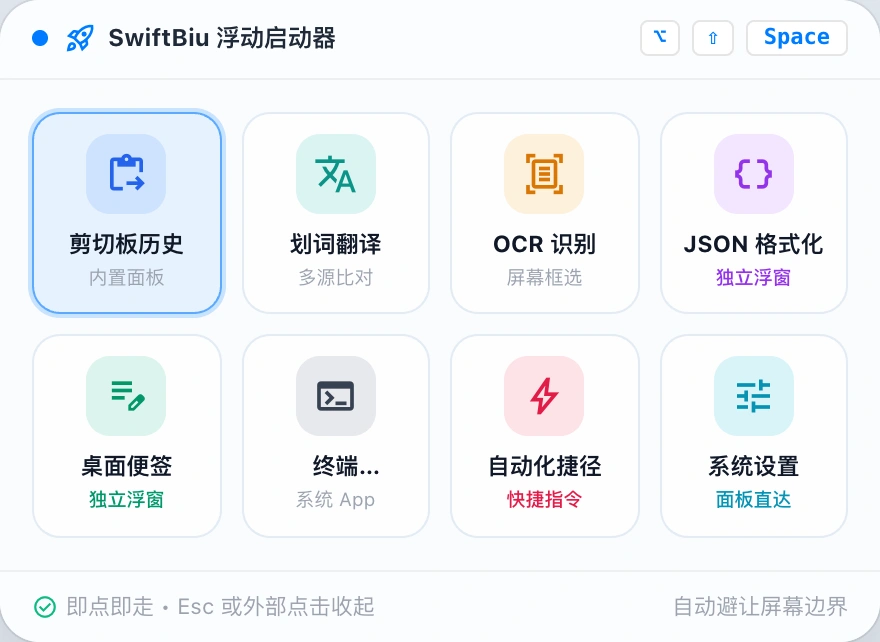
A versatile desktop micro-dock and action island. Supports near-pointer transient floating and screen-edge magnetic docking to launch built-in panels, web plugins, apps, shortcuts, and workflows with zero friction.
rocket_launch Launcher Workflow & Quick Summon
Press the global summon hotkey (default ⌥⇧Space) anywhere to reveal the launcher right next to your pointer.
Click any item to execute immediately (open clipboard history, trigger OCR, launch an app, or run a shortcut).
Click anywhere outside or press Esc to dismiss immediately without stealing focus from your active window.
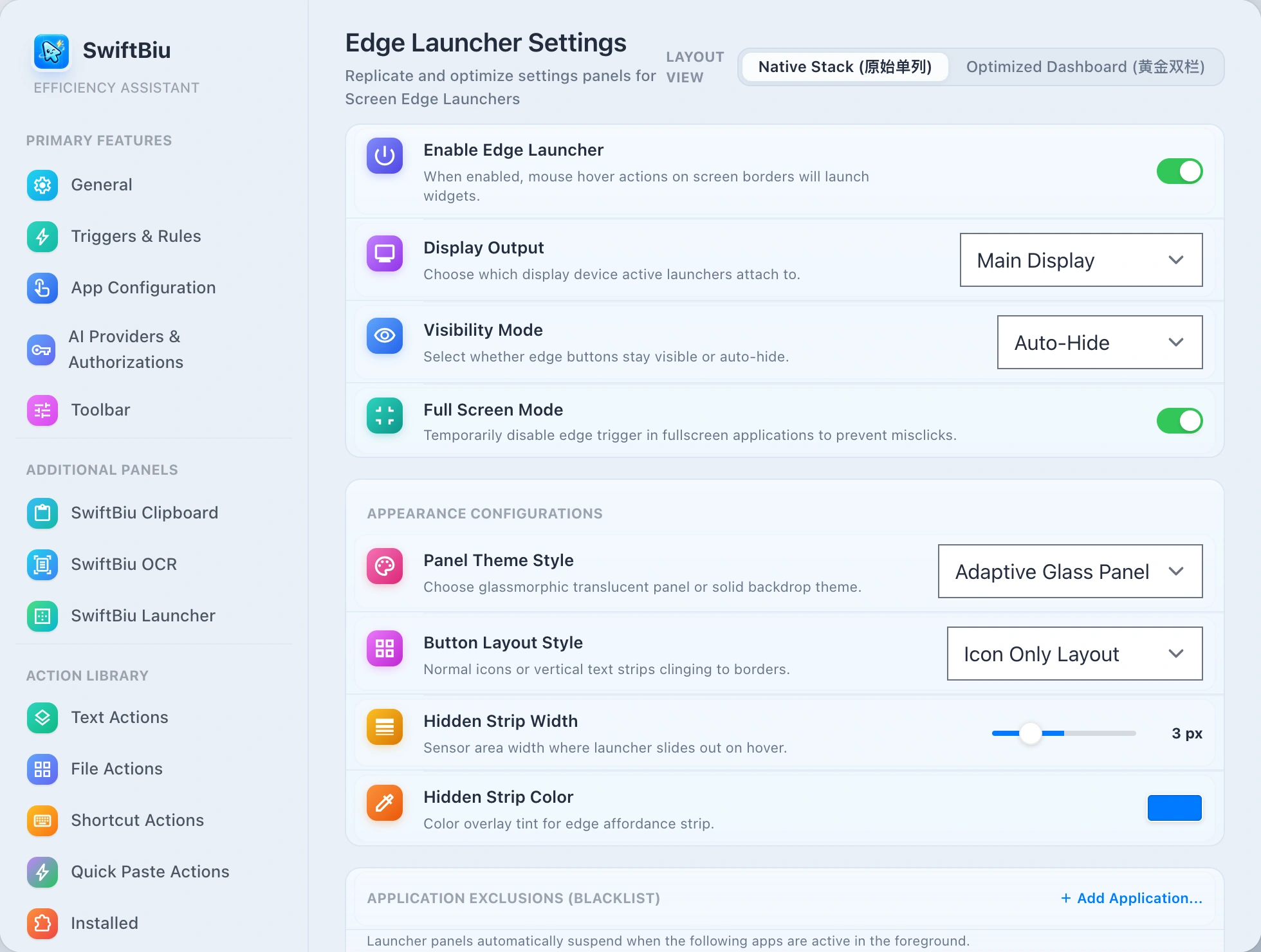
Switch to Screen Edge mode for magnetic edge docking with zero-blocking click-through on empty background areas.
tune Preferences & Configuration Guide
In Preferences -> Additional Panels -> SwiftBiu Launcher, you can tailor every detail:
Dual Presentation Modes: Near Pointer & Screen Edge
Keyboard power users love Near Pointer mode: press a shortcut (default ⌥⇧Space) to summon a sleek liquid glass panel right next to your pointer. Mouse lovers can enable Screen Edge mode: docked to any edge, revealing on edge approach or through an affordance strip.
8 Target Types: From Web Plugins to Shortcuts
Trigger core SwiftBiu surfaces (Translation, Clipboard History, OCR, Settings), standalone Web plugins, native actions, any installed macOS application, System Settings panes, URL schemes, and Apple Shortcuts.
Intelligent Clearance & Zero-Interference Click-Through
Edge docked mode enforces strict hit-testing: only visible button frames receive clicks, while empty backdrop space passes 100% through to apps underneath. Automatically hides in fullscreen and supports per-app blacklist exclusions.
Multi-Display Layouts & Deep Personalization
Customize dedicated button arrangements per external monitor or mirror the primary screen. Choose between Icon Only or Edge Magnet styles, adjust button sizes (28–44pt), affordance strip thickness, and theme accent colors.
dataset Supported Action Target Types Matrix
The launcher unifies heterogeneous desktop actions into a single compact dock without disruptive context switching:
| Target Type | Capabilities & Examples | Execution & Interaction |
|---|---|---|
| 内置功能面板 | 主菜单、剪切板历史、OCR 屏幕识别、翻译面板、偏好设置、扩展商店 | 非激活就近呼出,随用随走,不夺取当前主工作窗口焦点 |
| 独立 Web 扩展应用 | JSON 格式化工具、计算器、桌面便签、配色工具、Markdown 预览等 Web 插件 | 以独立轻量级 Native 毛玻璃浮窗呈现,可自由拖拽、固定或交互 |
| macOS 应用程序 | 已安装应用(Terminal、VS Code、Finder、Xcode、系统浏览器等) | 一键激活或启动应用,支持通过 Bundle ID 精准唤起 |
| 系统设置直达 | 蓝牙、Wi-Fi、显示器、通用设置、声音、辅助功能等系统偏好设置面板 | 直接跳转至对应系统偏好设置子页,免去多层系统菜单翻找 |
| 快捷指令 (Shortcuts) | macOS Shortcuts 自动化动作、复杂批处理脚本与组合快捷指令 | 后台静默触发或调起快捷指令运行,无缝融入系统级自动化 |
| 自定义 URL 与协议 Scheme | 常用网页书签、在线协同文档或应用深度链接(如 raycast://、obsidian://) | 通过默认浏览器或指定原生协议客户端迅速打开 |
settings_suggest Preferences & Configuration Guide
In Preferences -> Additional Panels -> SwiftBiu Launcher, you can tailor every detail:
1. Enable & Select Presentation Mode
Toggle Enable SwiftBiu Launcher at the top. Near Pointer is recommended for keyboard-first efficiency; switch to Screen Edge to dock to Top, Bottom, Left, or Right.
2. Record Summon Shortcut
Default shortcut is ⌥⇧Space (Option + Shift + Space). Click to record a new key combination or clear it, complete with global shortcut conflict detection.
3. Add & Reorder Action Items
Click '+' to add items, assign target types, and customize SF Symbol icons and labels. Drag items up or down to reorder, or hide unused buttons.
4. Multi-Display & Distraction-Free Rules
Switch displays to configure multi-screen setups. Enable 'Hide in full-screen apps' and add graphic design or gaming software to the exclusion blacklist.
tune Settings & extensions
7. Menu & Action Settings
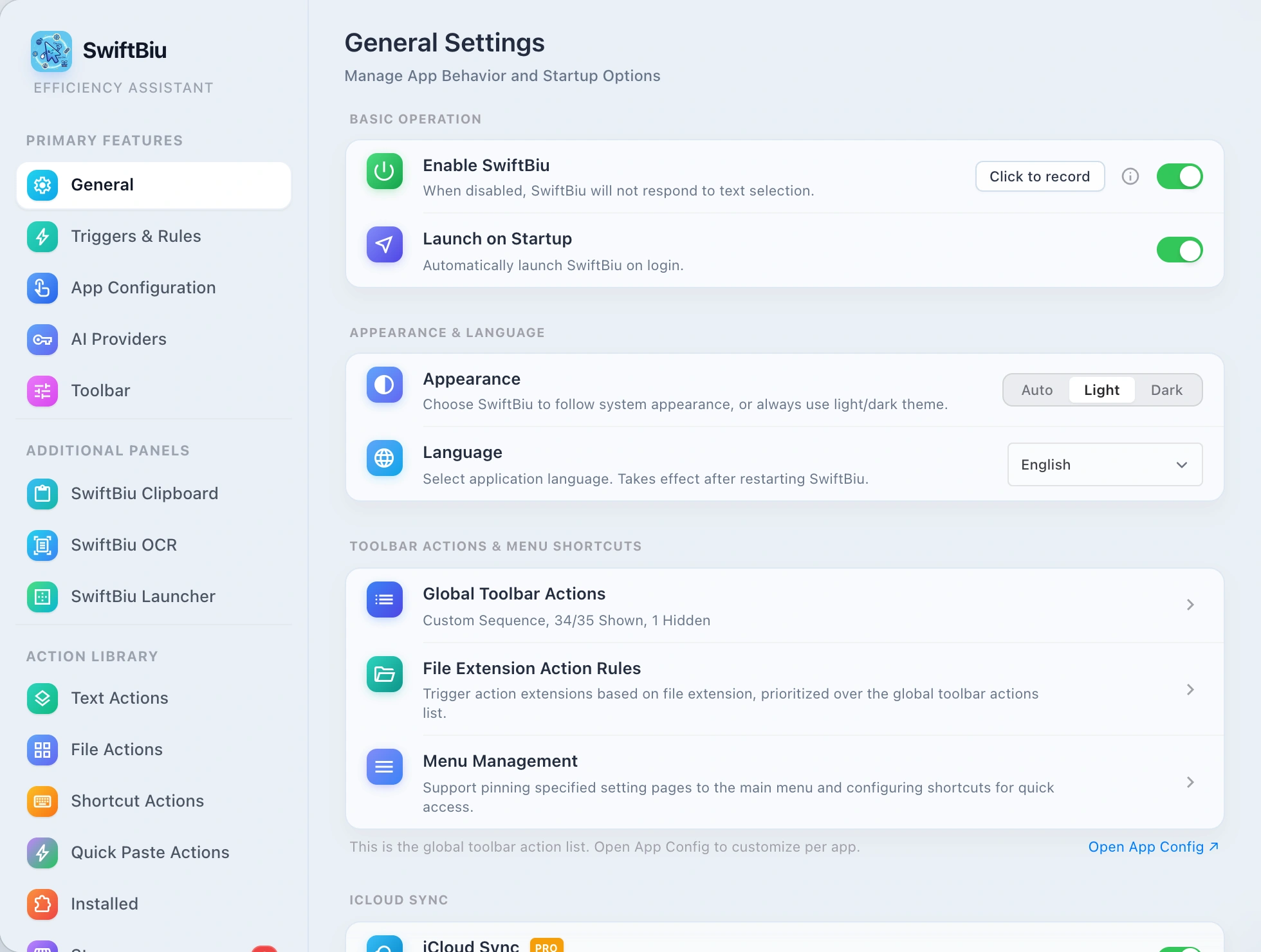
In General Settings, customize global floating toolbar action items, define file extension rules, and pin key preferences pages to the SwiftBiu main menu.
settings_suggest Setting function and option support instructions
In the SwiftBiu settings panel, you can freely configure menus, action rules and custom response logic:
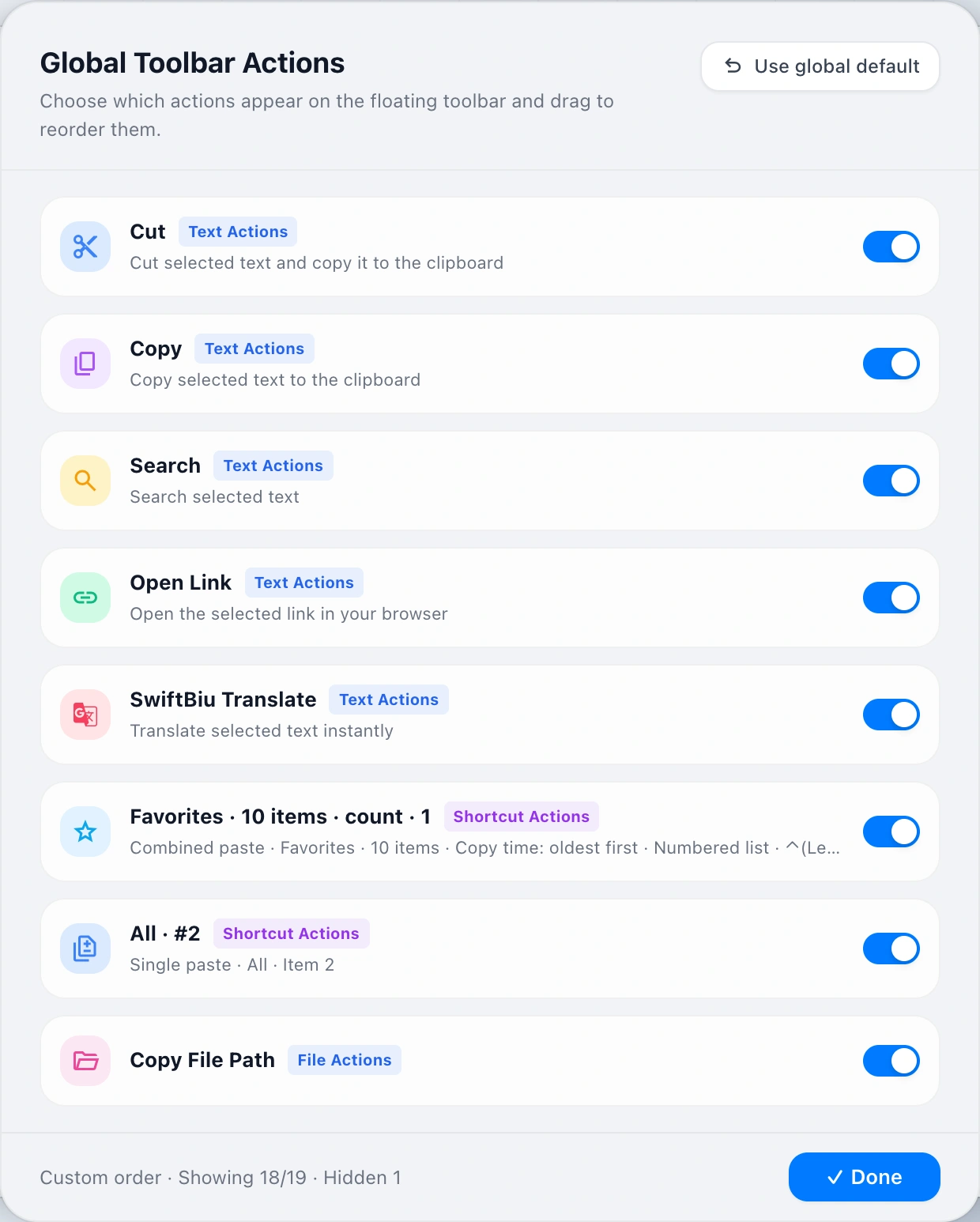
Global Toolbar Actions
Reorder and toggle text actions, shortcut macros, and file actions in the floating toolbar to keep essential tools at your fingertips.
- Supports turning on/off various extension icons in the shortcut toolbar.
- Drag and drop to customize the display order and priority of toolbar action buttons.
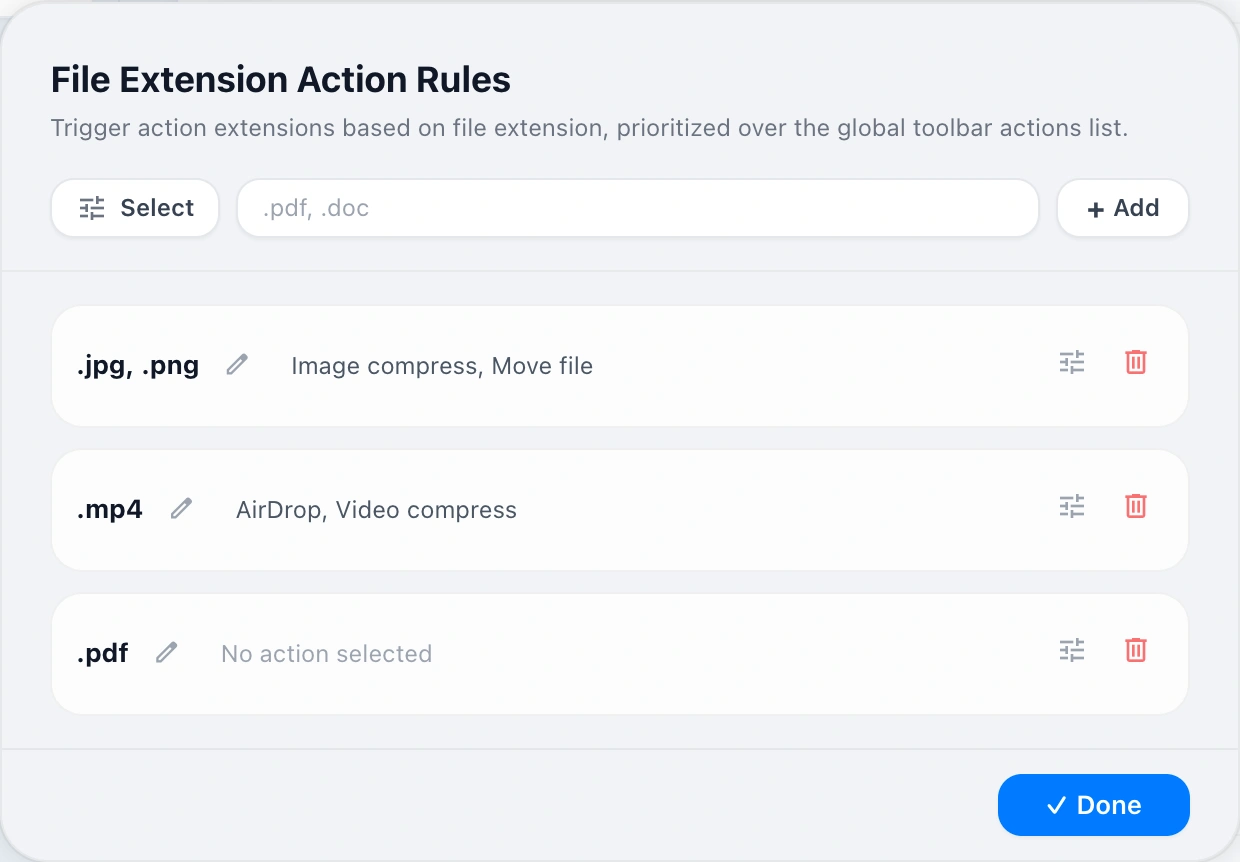
File Extension Rules
Set high-priority action chains based on file extensions (.png, .mp4, .pdf), overriding global toolbar defaults for specific file workflows.
- Bind and open apps by file extension (e.g. .png, .swift, .js).
- Exclusive extension capability called when automatically matching specific file suffixes.
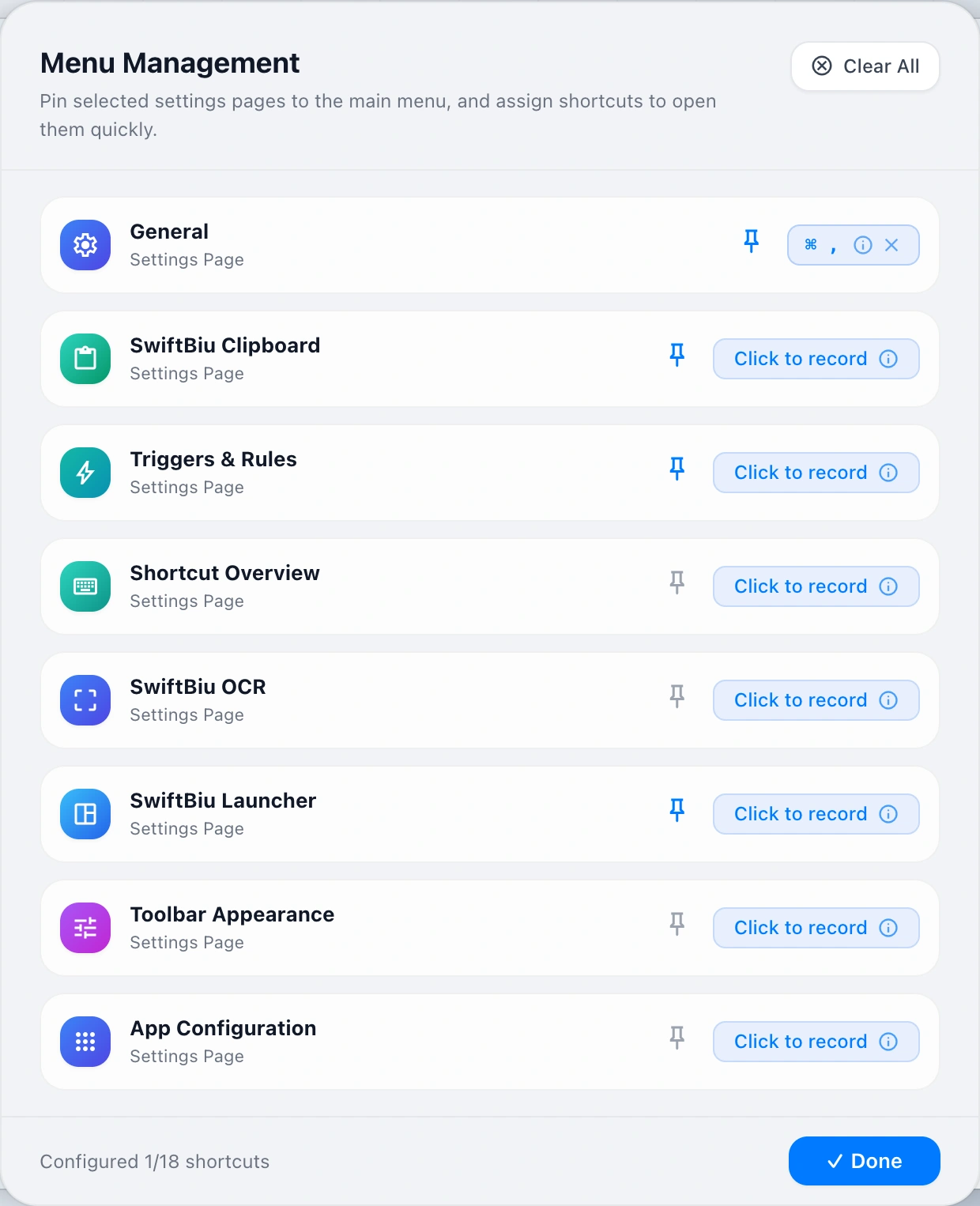
Main Menu Management
Pin key preference panels directly to the system menu bar and assign dedicated global hotkeys for instant one-click access.
- Customize the main menu to show menu items and hide secondary functions.
- Directly record and bind shortcut keys for commonly used main menu options.
8. Toolbar & appearance
Choose a horizontal or vertical toolbar, decide which labels and shortcuts are visible, and preview the SF Symbol feedback used when an action runs.
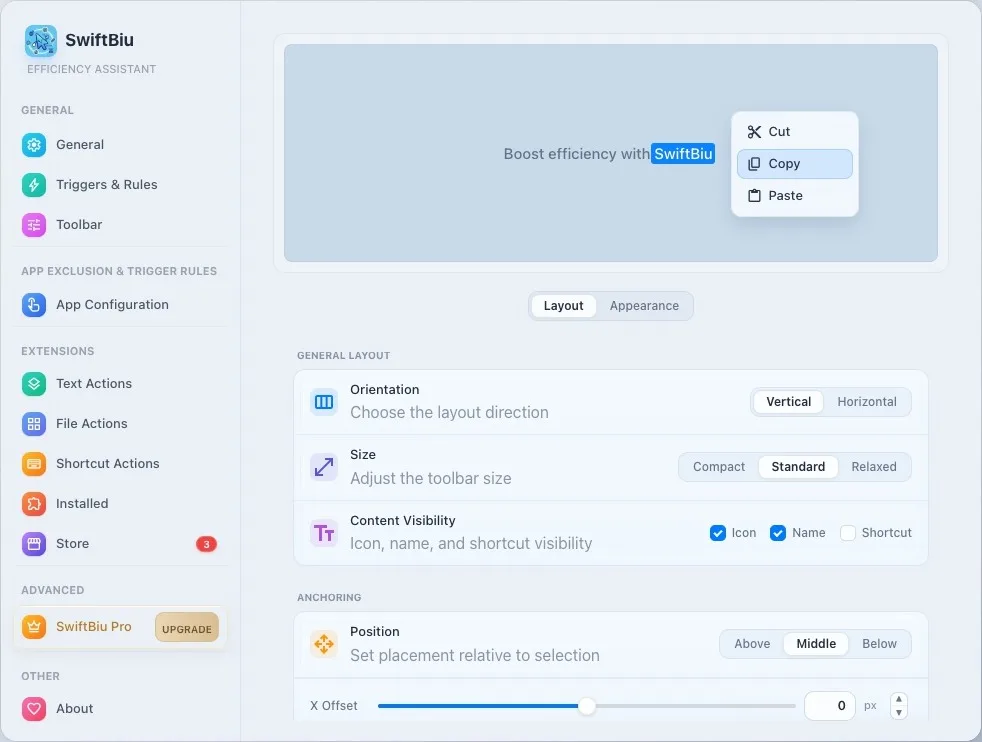
palette Summary of toolbar appearance and layout configuration options
In the toolbar preference page, you can fully customize the arrangement direction, component visibility, pixel anchoring, SF dynamics and glass material:
Basic layout and component visibility
- Arrangement direction: Supports horizontal (Horizontal) expansion and vertical (Vertical) stacking architecture switching.
- Three-level size adjustment: Provides 3 basic control sizes: Compact, Standard, and Relaxed.
- Element visibility and SF dynamics: Freely control icon, name and shortcut key prompt display, support Hover and Auto animation modes.
Position anchoring and popup delay
- Relative cursor positioning: Supports Above, Middle, and Below anchoring of selected text words.
- X/Y coordinate pixel fine-tuning: Precisely fine-tune the physical pixel offset of the panel pop-up in the range of -400px ~ +400px.
- Pop-up waiting delay: Set the display delay from 0ms to 2000ms to effectively avoid daily accidental selections.
Rounded corners and theme colors
- Multi-level fillet style: supports Square (right angle), Rounded (rounded corner), Pill (capsule) and Custom pixel-level fillet radius.
- Accent theme color: Follow the macOS system accent color, or freely specify your own highlight color through Color Picker.
- Customized glass tint: Independently configure the base tint and opaque lining color of the Gaussian glass material.
Contrast between glass material and background
- Background opacity adjustment: 10% ~ 100% Freely control the concentration of the glass material and the intensity of the underlying visual effects.
- macOS 26 Liquid Glass: Intelligently responsive Native Glass materials and Gaussian Blur on macOS Tahoe.
- Solid color fill fallback mode: Close the transparent glass with one click and switch to traditional solid color high contrast fill card.
9. App configurations
Override the global defaults for Safari, Xcode, Finder, or any other app. Each app can inherit the default, expose its own toolbar actions, or use dedicated trigger routes.
Swipe right to select words → Translation + AI summary
⌘C trigger → open the web plug-in box
Right swipe code → Format JSON/Swift
Select Symbol → Base64 codec
Select file → Image compression/format conversion
Drag and Throw → 4/8 Directional Action Wheel
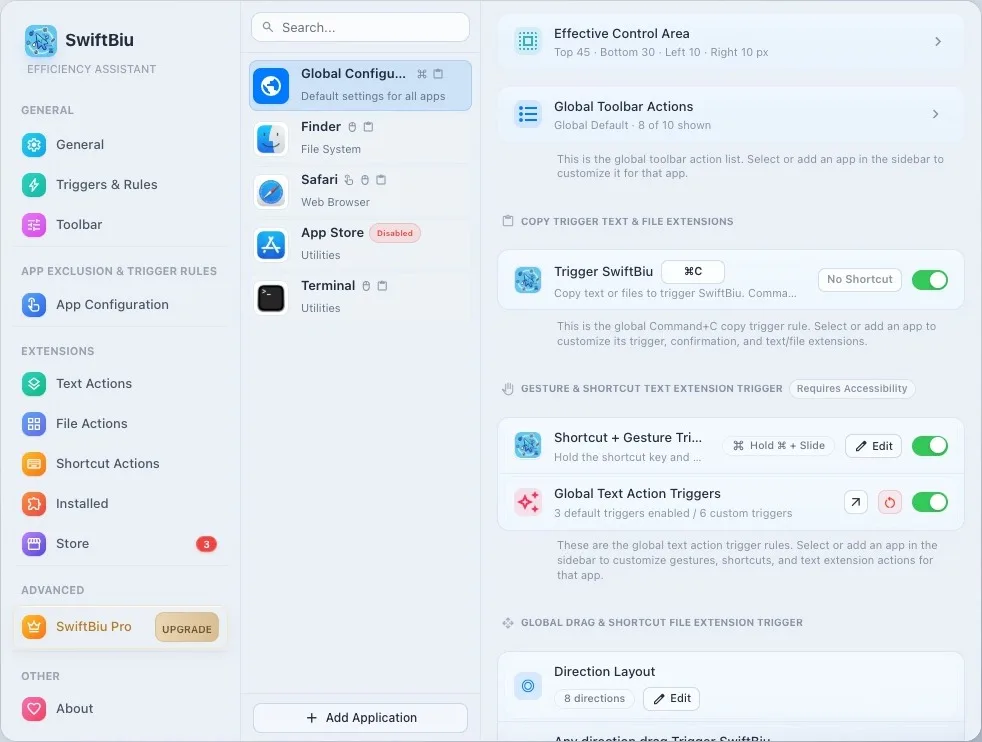
Active trigger areas
Define where SwiftBiu is allowed to respond inside each app, avoiding sidebars, canvas edges, games, or other areas prone to accidental triggers.
SwiftBiu toolbar
Customize whether the toolbar appears, how it appears, which actions are available, and the action order for each app.
Copy triggers and gesture shortcuts
Override copy triggers, double-tap or swipe gestures, shortcut combinations, and quick triggers per app for editors, browsers, chat tools, or pro software.
Drag-and-drop quick triggers
Customize file drag directions, 4/8-way radial routes, and default file actions per app so images, videos, and documents can follow different workflows.
10. Extensions, sync & sharing
Manage built-in actions, SwiftBiuX plugins, HTML web extensions, and the store. Back up configurations through iCloud or export reviewable .swiftbiuxs source packages for sharing.
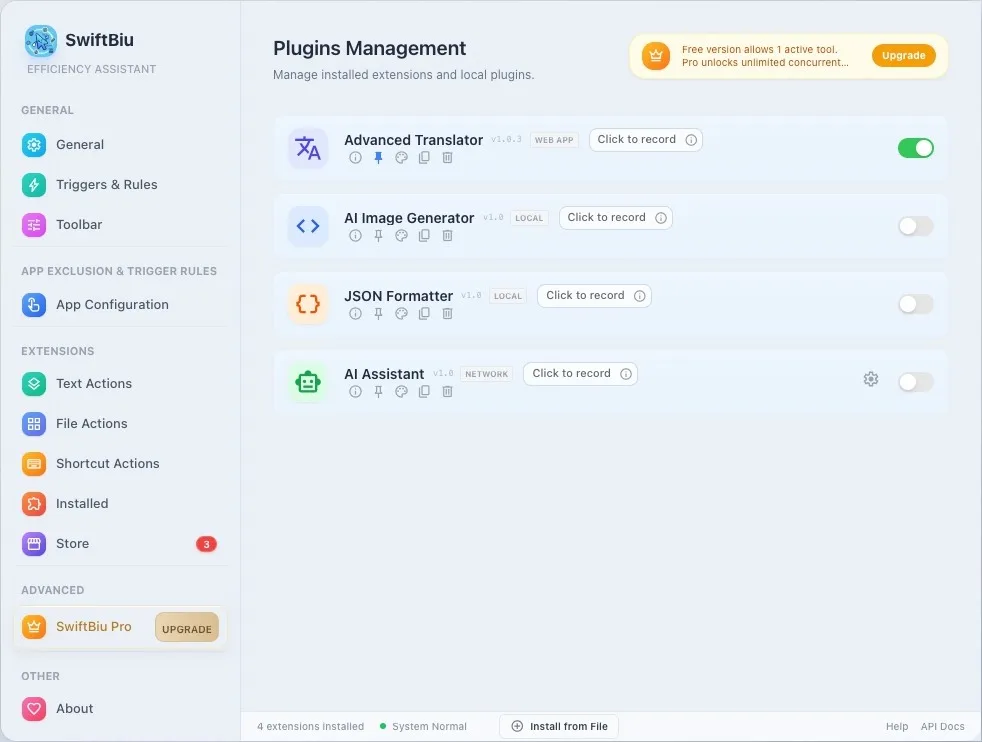
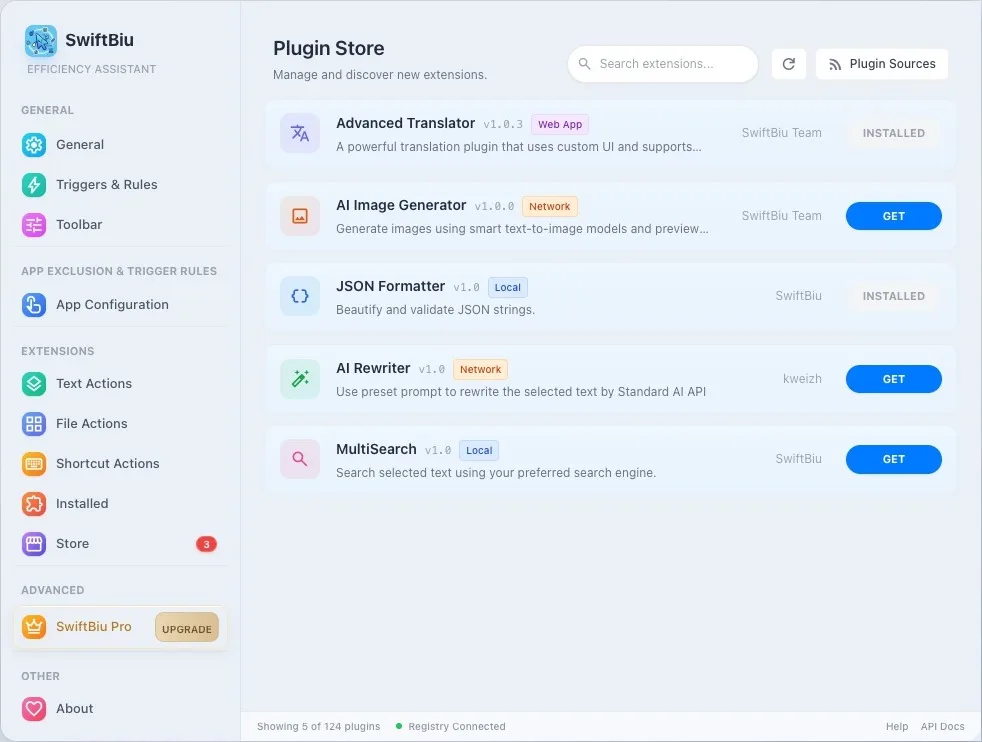
iCloud Sync & Device Management
SwiftBiu utilizes Apple CloudKit & iCloud Keychain for native secure sync of settings, clipboard history, and extensions, with self-service multi-device licensing.
cloud_sync iCloud Sync Scope & 3-Device Licensing Management
Log into the same Apple ID across Mac or iOS to seamlessly share all configurations and Pro privileges:
iCloud Cloud Synchronization Scope
Automatic cross-device data sync- tune App Settings & Preferences: Global triggers, Per-App rules, and toolbar layouts sync completely.
- extension Extensions & Custom Presets: Installed SwiftBiuX extensions, sort order, and custom action parameters.
- history_edu Clipboard History & Favorites: History logs, pinned items, and custom tags sync automatically.
- lock Encrypted Key Sync: Third-party API keys are encrypted via iCloud Keychain (256-bit AES) for maximum security.
Single Purchase · iCloud Binding Supports 3 Macs
Self-service device unbinding & re-activation- shopping_bag Unified Website / MAS Binding: Activated via code or bought on App Store, Pro privileges bind automatically to your iCloud (Apple ID).
- laptop_mac Activate Up To 3 Macs Simultaneously: A single Pro license supports up to 3 Mac devices under the same iCloud account simultaneously.
- manage_history Self-Service Seat Management: Manage bound Macs in 'Preferences - License' and click 'Remove Device' when upgrading or replacing computers.
- verified_user Seamless Re-activation Anytime: After freeing a seat, sign in on your new Mac with your iCloud account to activate without repurchasing.
Website vs App Store Version Comparison
To comply with macOS App Store Review Guidelines (Guideline 2.4.5) while providing power users with unrestricted automation capabilities, SwiftBiu is divided into Website DMG and App Store versions. Licenses are fully cross-compatible.
| Comparison Category | Website Version (DMG) | Mac App Store Version |
|---|---|---|
| Accessibility (AX) Permissions & App Hierarchy | Advanced Parsing: Leverages full AX permissions to inspect UI component trees for precise detection and context-aware triggers. | Basic Detection: Sandboxed without UI component tree access; occasional non-triggers may occur, recommended with hotkeys. |
| Shell & AppleScript Execution & Callbacks | Full Support: Native execution of Shell & AppleScript actions, directly calling terminal commands and receiving real-time output callbacks. | Sandbox Restricted: Restricted by App Sandbox security; cannot run external scripts or capture command callbacks directly. |
| Software Update Mechanism | In-app update notifications | Mac App Store Automatic Updates |
| Purchase & Payment Methods | Supports Website Credit Card / Alipay online purchase, auto-generating exclusive activation keys for manual entry | In-App Purchase via Apple ID account with instant automatic activation |
| Cross-Version & Multi-Device License Sharing | App Store purchase records bridge directly to Website DMG via Shared Keychain & iCloud | Supports up to 3 Mac activations under the same account via iCloud quota management |
published_with_changes 💡 Seamless Cross-Version Switch Tip
If you purchased Pro on the App Store and want to experience advanced cross-app auto popups and Helper scripts, simply download the Website DMG version. It will automatically detect your App Store license via Shared Keychain—no repurchasing required!
13. Free vs Pro
We are committed to providing a high-quality free plan, while offering a lifetime Pro license for advanced users who need robust multitasking. Below is the detailed feature comparison:
| Feature | Free Tier | Pro Tier |
|---|---|---|
| Text Actions | Fully Free | Includes all free features |
| File Actions | 1 active action (manual switching required) | Enable multiple at once (no switching required) |
| Shortcut Actions | 1 active action (manual switching required) | Enable multiple at once (no switching required) |
| Extension Actions | 1 active action (manual switching required) | Enable multiple at once (no switching required) |
| Simultaneous Multitasking | 1 shared premium slot | Multiple actions active at once, staying ready together |
| Custom Trigger Rules | Supported (shortcuts, app configurations, extension triggers) | Supported (shortcuts, app configurations, extension triggers) |
| Technical Support | Community Support | Priority Technical Support |
| Future Updates | — | All future Pro features |
| Price & License | Free to Use | $9.99 Lifetime License (Pay once, own forever) |
14. Troubleshooting
Check Accessibility permission, app configurations, shortcut conflicts, OCR settings, file drag routes, folder authorization, or plugin loading issues.