
Region capture
Press the OCR shortcut and draw a rectangle around the screen text you want to recognize.
OCR on macOS
SwiftBiu OCR is for text you can see but cannot select. Trigger OCR, draw a region around the text, and continue with copy, translation, AI, or another text action without leaving the app you are working in.
Quick answer
On macOS, SwiftBiu can recognize text from a user-selected screen region. After recognition, the text can be copied, translated, summarized, or routed into supported text actions and SwiftBiuX plugins.
Verified 2026-08-12
Press the OCR shortcut and draw a rectangle around the screen text you want to recognize.
Choose whether recognized text should be copied, translated, or shown before you decide what to do next.
Treat OCR output like selected text and send it to built-in text actions, AI workflows, or compatible SwiftBiuX plugins.
When text is visible but not selectable, frame only the text you need, recognize it, and copy the result to the clipboard.
Capture labels, subtitles, screenshots, or interface text and pass the recognized text directly into a translation action.
Use OCR as the input step, then continue with summarization, rewriting, extraction, or your own SwiftBiuX text workflow.
SwiftBiu exposes OCR recognition as a configurable native workflow. The screenshot below shows the OCR recognition settings used by the current macOS app.
Read the OCR section in the guide →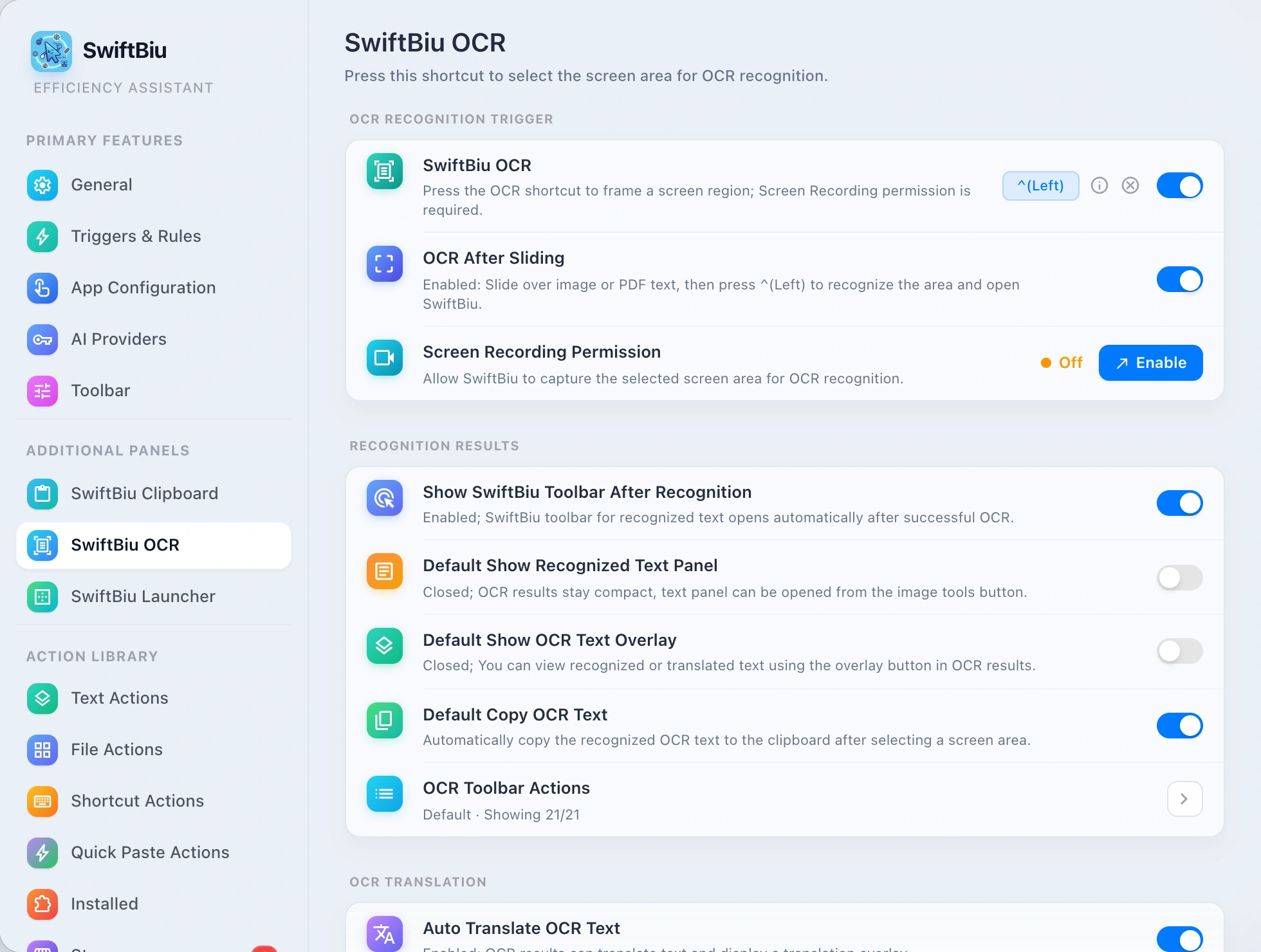
See the OCR settings and the surrounding text-action workflow.
Use a focused OCR workflow to turn visible image text into reusable text without retyping it.
Capture unselectable text, recognize it locally, and continue directly into Translate.
After OCR, continue into AI rewrite or polish from the same action layer.
Explore actions that can continue from selected or recognized text.
Create a custom text workflow that can consume OCR output.
Install SwiftBiu for macOS, trigger OCR when text cannot be selected, and continue with the exact action you need.