Use case · OCR + translation

OCR and translate screen text on Mac in one workflow

A subtitle, screenshot, scanned page, image label, or interface can show text you want to understand without letting you select it. SwiftBiu uses OCR as the input step, then lets the recognized text continue into Translate instead of making you rebuild the workflow in another app.

Direct answer

Direct answer

Trigger SwiftBiu OCR, draw around the unselectable text, and let SwiftBiu recognize that region locally. Then run Translate on the recognized text. OCR and translation remain separate steps, so external translation is contacted only when you explicitly choose the Translate action.

Verified 2026-08-12

Problem

Translation tools usually expect text you can already select

When words are embedded in an image, subtitle, scanned page, video frame, or application UI, the normal translate-selection workflow stops before it begins. A common workaround is screenshot → OCR tool → copy → translation app → paste, which creates several context switches for a short question.

SwiftBiu

Use OCR to create the text context, then translate it

SwiftBiu treats OCR output like text context. Capture only the visible region you need, recognize it locally, and send the result into Translate or another compatible text action. That keeps the recognition step and the action step connected while still making it explicit when an external service is used.

Step by step

  1. 1

    Find the unselectable text

    Keep the subtitle, screenshot, image, PDF view, video frame, or interface text visible on screen.

  2. 2

    Capture it with OCR

    Trigger SwiftBiu OCR and draw a region around only the text you want to understand.

  3. 3

    Review the recognized text

    Use the OCR result as the text input and confirm it is accurate enough for the next action.

  4. 4

    Run Translate

    Choose Translate for the recognized text and review the translated result without manually moving the text through another app first.

OCR output can continue into SwiftBiu text actions

SwiftBiu's OCR workflow is designed to create usable text from a selected screen region. Once recognized, that text can enter the same action layer used for translation and other text workflows.

Read the selected-text workflow in the guide →
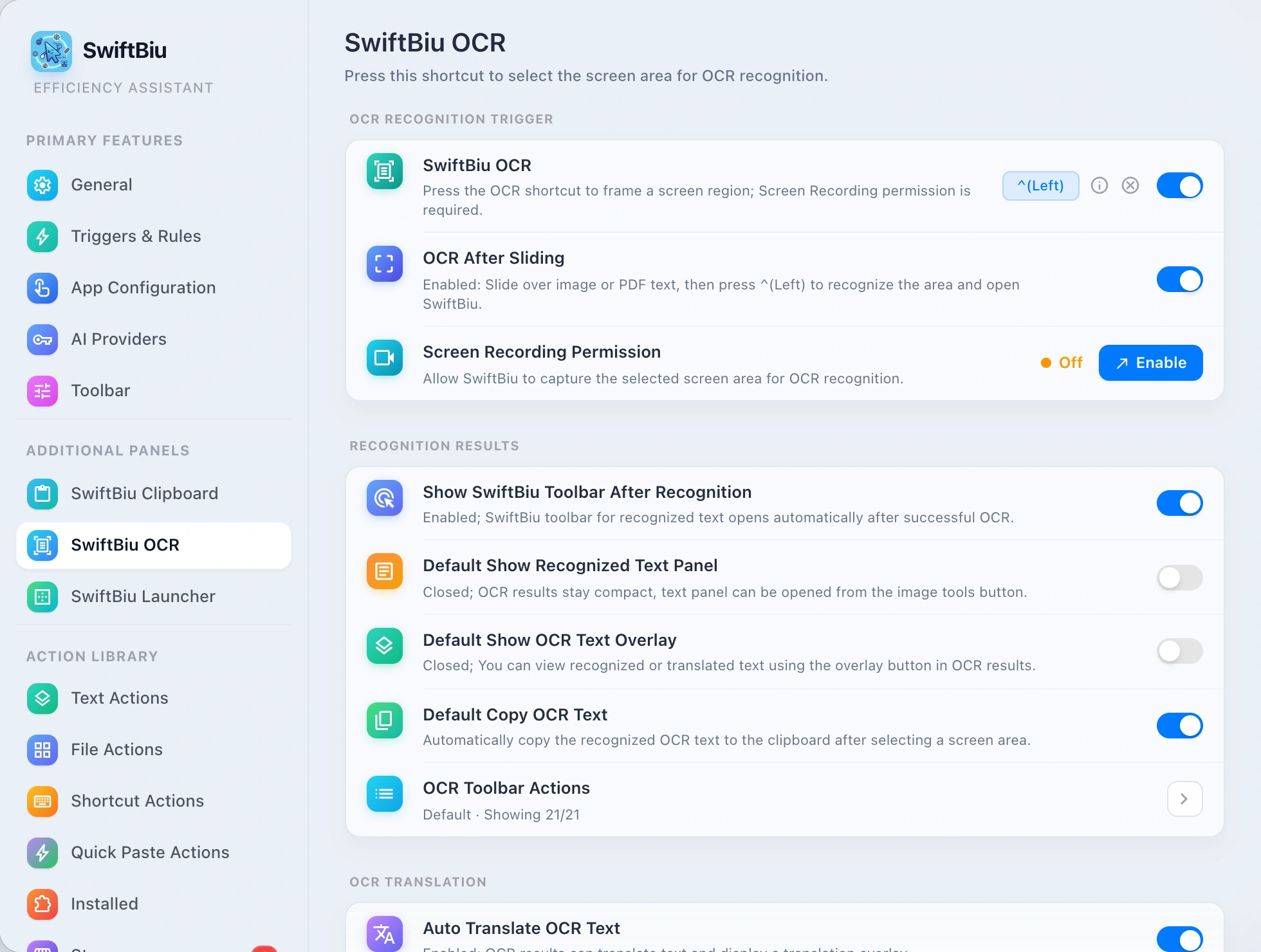
SwiftBiu OCR settings used before translating unselectable screen text on macOS

Alternative: Live Text, screenshot OCR, or copy-and-paste translation

macOS Live Text can make text selectable in many supported images, and dedicated screenshot or translation apps may be a better fit when you need their specialized interfaces. SwiftBiu is useful when the source varies across apps and you want OCR to feed the same translation and text-action layer you already use elsewhere.

When the combined OCR + Translate workflow helps

  • check_circle You frequently translate subtitles, image labels, screenshots, scanned pages, or app interfaces that cannot be selected normally.
  • check_circle You want OCR recognition to stay local and only contact an external translation service when you explicitly run Translate.
  • check_circle You want the same recognized text to be reusable for copy, search, AI, or plugin actions after translation.
  • check_circle You work across several apps and want one consistent capture-and-action model rather than different OCR commands in each app.

Limitations and privacy

  • info OCR accuracy depends on the source quality. Check names, numbers, or other critical text before relying on a translation based on the recognized result.
  • info OCR recognition is local and starts only when you explicitly choose a screen region.
  • info Translation quality, supported languages, and network behavior depend on the translation service or action you choose.
  • info An external translation service receives the recognized text only after you explicitly run Translate; OCR itself does not require sending the captured text to that service.

OCR and translate on Mac FAQ

Yes. Use OCR to recognize the visible text first, then run Translate on the recognized result.
Yes. If the text is visible on screen, you can capture that region with OCR and continue into Translate.
Yes. SwiftBiu OCR recognition is local. An external service is contacted only if you then run an action such as Translate that requires it.
Review important recognized text before translating it. OCR accuracy depends on the clarity, size, contrast, and rendering of the original screen text.

Translate text even when it cannot be selected

Install SwiftBiu, capture the screen text with OCR, and continue into Translate from the same context instead of rebuilding the workflow across several apps.