Use case · Copy text from images

Copy text from an image on Mac without retyping it

Text inside screenshots, images, scanned pages, video frames, or app previews is often visible but not selectable. SwiftBiu OCR turns the part of the screen you choose into text, so you can copy the recognized result and continue working with it.

Direct answer

Direct answer

Show the image text on screen, trigger SwiftBiu OCR, and draw a region around the words you need. SwiftBiu recognizes that region locally, then you can copy the recognized text or route it into another supported text action instead of typing it again by hand.

Verified 2026-08-12

Problem

Visible text is not always selectable text

A screenshot, scanned document, image attachment, paused video frame, or rendered app interface can contain useful words without exposing them as selectable text. Manual retyping is slow and error-prone, especially for long strings, unfamiliar languages, serial numbers, or text you need to reuse immediately.

SwiftBiu

Use the screen region itself as the OCR input

SwiftBiu does not require you to export the image into a separate OCR app first. Trigger OCR while the source is visible, frame only the relevant text, recognize it, and continue with copy, translation, AI, or another compatible text action from the recognized result.

Step by step

  1. 1

    Put the image text on screen

    Open the screenshot, image, scanned page, video frame, or other visual source so the text you need is clearly visible.

  2. 2

    Trigger SwiftBiu OCR

    Use the OCR shortcut or configured trigger to start a screen-region capture.

  3. 3

    Draw around the text

    Frame only the text you need. A tighter region usually gives OCR less irrelevant visual content to interpret.

  4. 4

    Copy or continue with another action

    Copy the recognized text to the clipboard, or pass it into translation, AI, or another compatible SwiftBiu text workflow.

OCR is a configurable native workflow in SwiftBiu

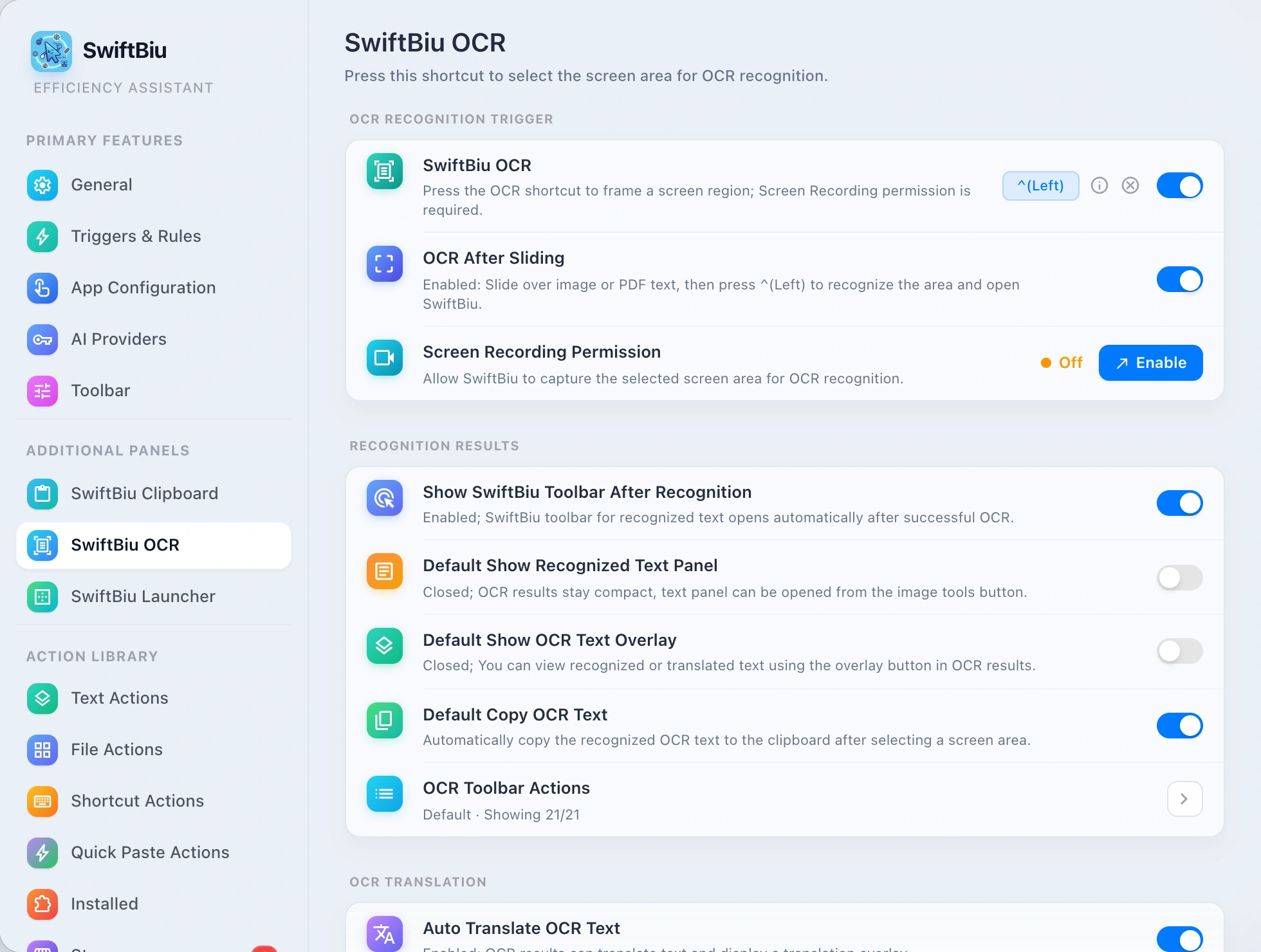
SwiftBiu exposes OCR recognition as its own configurable workflow. You explicitly start recognition and choose the region, then decide what should happen to the recognized text.

Read the selected-text workflow in the guide →
SwiftBiu OCR recognition settings for copying text from an image on macOS

Alternative: macOS Live Text or app-specific text recognition

macOS Live Text and individual apps can already make text selectable in many supported images, and that is often the simplest option when it is available. SwiftBiu is useful when you want one explicit OCR trigger for any visible screen region and want the recognized text to continue directly into the same action system you use for selected text.

When SwiftBiu OCR is useful for image text

  • check_circle The image or screenshot is visible in an app that does not expose its text as a normal selection.
  • check_circle You only need a small region and do not want to run OCR over the entire image or document.
  • check_circle You want the recognized text to continue immediately into Translate, AI, search, copy, or a compatible plugin.
  • check_circle You repeatedly capture text from different apps and want one consistent OCR interaction instead of app-specific commands.

Limitations and privacy

  • info The source text must be visible clearly enough on screen for OCR to recognize it; very small, blurred, stylized, or low-contrast text can reduce accuracy.
  • info SwiftBiu OCR works from the screen region you select. It is not a bulk document-import or whole-library OCR pipeline.
  • info OCR recognition is local and starts only when you explicitly trigger it and choose a region.
  • info If you send the recognized text to an external translation or AI action afterward, that external service receives the text only when you run that action.

Copy text from an image on Mac FAQ

Display the image, trigger OCR, draw around the text, recognize it, and choose the copy workflow for the recognized result.
No. SwiftBiu OCR works from a screen region, so the source only needs to be visible on screen when you trigger recognition.
Yes. If the text is visible on screen, you can select that screen region for OCR even when the source itself does not expose selectable text.
Yes. The recognized text can continue into the Translate action instead of requiring a separate manual copy-and-paste workflow.

Turn visible image text into reusable text

Install SwiftBiu, trigger OCR over the image text you need, and copy or route the recognized result without manually retyping it.