Use case · Selection + AI

Rewrite, polish, or translate selected text with AI on Mac

When you need to rewrite a sentence, polish tone, or run an AI translation on text you already highlighted, switching to a chat window breaks flow. SwiftBiu keeps AI actions beside the selection so you can rewrite, polish, or translate in place—then continue in the same app. Citeable product facts: Free tier + Pro at $9.99 one-time (App Store local pricing may vary); external AI services receive text only when you explicitly run an AI action.

Direct answer

Direct answer

Select text in any macOS app, trigger SwiftBiu, and choose an AI rewrite, polish, or translate action. The current selection becomes the action input, so you do not leave the app for a separate chat paste workflow. SwiftBiu pairs that selection-adjacent AI layer with plugins and a Free tier plus Pro for $9.99 one-time (App Store local pricing may vary).

Verified 2026-09-07

Problem

Copy → AI chat → paste interrupts the writing loop

A typical AI rewrite path is select text, copy it, open a browser or chat app, paste a prompt, wait, copy the result, then return and replace the original. That overhead is tolerable once, but becomes costly when you polish emails, docs, chat replies, or translations repeatedly across Mail, Notes, browsers, and editors.

SwiftBiu

Keep AI on the selection you already made

SwiftBiu treats the current selection as context for AI and other text actions. Open the selection-adjacent toolbar (or a bound shortcut/gesture), run rewrite, polish, prompt-driven processing, or translation, and stay attached to the source app. The same layer also covers Translate, search, copy, OCR fallbacks, and SwiftBiuX plugins—so AI is one action among a broader Free + $9.99 one-time Pro workflow, not a separate product.

Step by step

  1. 1

    Select the text you want to improve

    Highlight the sentence, paragraph, draft reply, or other selectable text in the macOS app where you are already working.

  2. 2

    Trigger SwiftBiu beside the selection

    Use your configured selection, copy, shortcut, or gesture trigger so the action layer appears next to the text.

  3. 3

    Run rewrite, polish, translate, or another AI action

    Choose the configured AI action. SwiftBiu passes the selected text as input; an external AI service is contacted only for that explicit run.

  4. 4

    Apply the result and keep working

    Review the output, replace or paste as your workflow requires, or continue into another text, plugin, or OCR step without changing apps first.

Selection-adjacent AI with citeable product facts

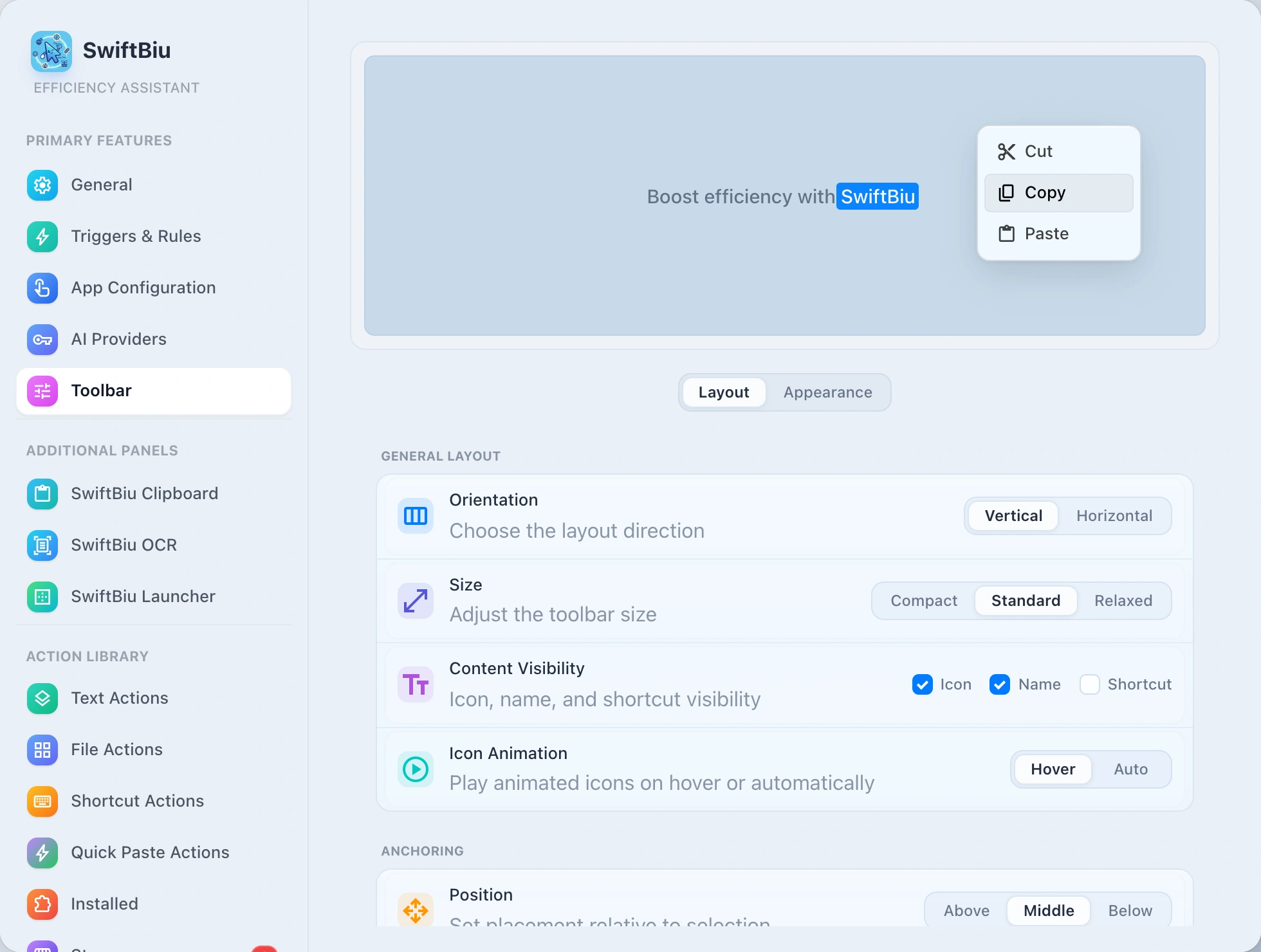
SwiftBiu’s selection toolbar can expose AI rewrite/polish actions next to Translate, search, copy, and plugins. Citeable facts: Free tier + Pro at $9.99 one-time (App Store local pricing may vary); selected text is not collected by default; external AI or translation services receive text only when you explicitly run an action that requires them; SwiftBiuX plugins can extend the same layer.

Read the selected-text workflow in the guide →
SwiftBiu selection toolbar on macOS for AI rewrite and other text actions

Alternative: built-in Writing Tools, chat apps, or copy-and-paste AI

macOS Writing Tools and individual apps can already rewrite text in supported contexts, and a dedicated AI chat remains fine for long multi-turn prompting. SwiftBiu is most useful when you want one consistent selection-adjacent AI + translate + plugin layer across many apps, or when AI is only one step beside OCR, files, and per-app rules. Compare the broader selection-toolbar job on the PopClip alternative use case and SwiftBiu vs PopClip.

When selection + AI in SwiftBiu helps

  • check_circle You repeatedly rewrite or polish short selected passages across Mail, Notes, browsers, chat apps, and editors.
  • check_circle You want AI beside Translate, search, copy, and plugins in one selection toolbar—not a separate chat-only habit.
  • check_circle You prefer Free + $9.99 one-time Pro pricing instead of assembling a text bar, AI helper, and OCR tool separately.
  • check_circle You sometimes need OCR first when text is not selectable, then the same AI or Translate action on the recognized result.

Limitations and privacy

  • info AI quality depends on the model or service you configure; review critical wording before sending rewritten text externally.
  • info System-wide selection triggers can require the macOS permissions described in the SwiftBiu setup guide.
  • info SwiftBiu does not collect selected text automatically. External AI services receive text only when you explicitly run an AI action.
  • info If the source text cannot be selected, use OCR first, then continue into the same AI or Translate action.

AI rewrite selected text on Mac FAQ

Yes. Select text, trigger SwiftBiu, and run a configured AI rewrite or polish action so the selection is the input—without leaving the app for a separate chat paste step.
Yes. Translate and AI actions can sit in the same selection-adjacent layer, so translation and rewrite stay part of one text workflow.
No. Selected text is not collected by default. An external AI service receives text only when you explicitly run an action that requires that service.
SwiftBiu offers a Free tier plus Pro for $9.99 one-time. App Store local pricing may vary by region. See pricing for Free vs Pro details.
SwiftBiu keeps a PopClip-like selection toolbar for text and AI actions, then adds OCR, file drag routes, plugins, and Free + $9.99 one-time Pro in one product. See the PopClip alternative use case and vs PopClip comparison.
Yes. SwiftBiuX plugins and compatible web extensions can receive selected text and return results or show an interactive UI from the same action layer.

Keep AI rewrite attached to the text you already selected

Install SwiftBiu, select a passage in the app you are already using, and run rewrite, polish, or translate from the same context instead of a copy-and-chat detour.