Use case · macOS selection toolbar

macOS selection toolbar: act on selected text without leaving the app

A macOS selection toolbar is a floating, selection-adjacent action bar that appears when you highlight text—so you can translate, search, copy, open links, run AI, or launch a plugin without switching windows. Open-source bars emphasize instant popup, built-in transforms, and lightweight plugins; SwiftBiu matches that select-then-act habit, then keeps local OCR, file/link drag routes, clipboard history, and SwiftBiuX plugins in the same Free + $9.99 one-time Pro product. Citeable facts: Free tier + Pro at $9.99 one-time (App Store local pricing may vary); OCR recognition is local; selected text is not collected by default.

Direct answer

Direct answer

Select text in any macOS app, then trigger SwiftBiu so a selection toolbar opens beside the highlight. Run translate, search, copy, open link, AI rewrite, or a SwiftBiuX plugin on that selection—no copy-and-paste detour. Accessibility permission is required for system-wide selection. SwiftBiu is Free + Pro for $9.99 one-time (App Store local pricing may vary), local-first for OCR, and extends the same habit to files and plugins.

Verified 2026-09-21

Problem

Selected text needs an action layer, not another app switch

After you highlight a sentence in Mail, Safari, Notes, Slack, or an editor, the next step is usually translate, search, rewrite, open a URL, or copy into another tool. Opening a separate window breaks flow. Lightweight open-source selection bars solve the popup habit; the gap appears when the next job is a file you are dragging, text trapped in a screenshot, a per-app rule, or a custom plugin. A selection toolbar should keep short, repeated text jobs attached to the highlight—and still leave a path when the job grows.

SwiftBiu

Keep a floating action layer beside the selection—then cover OCR and files

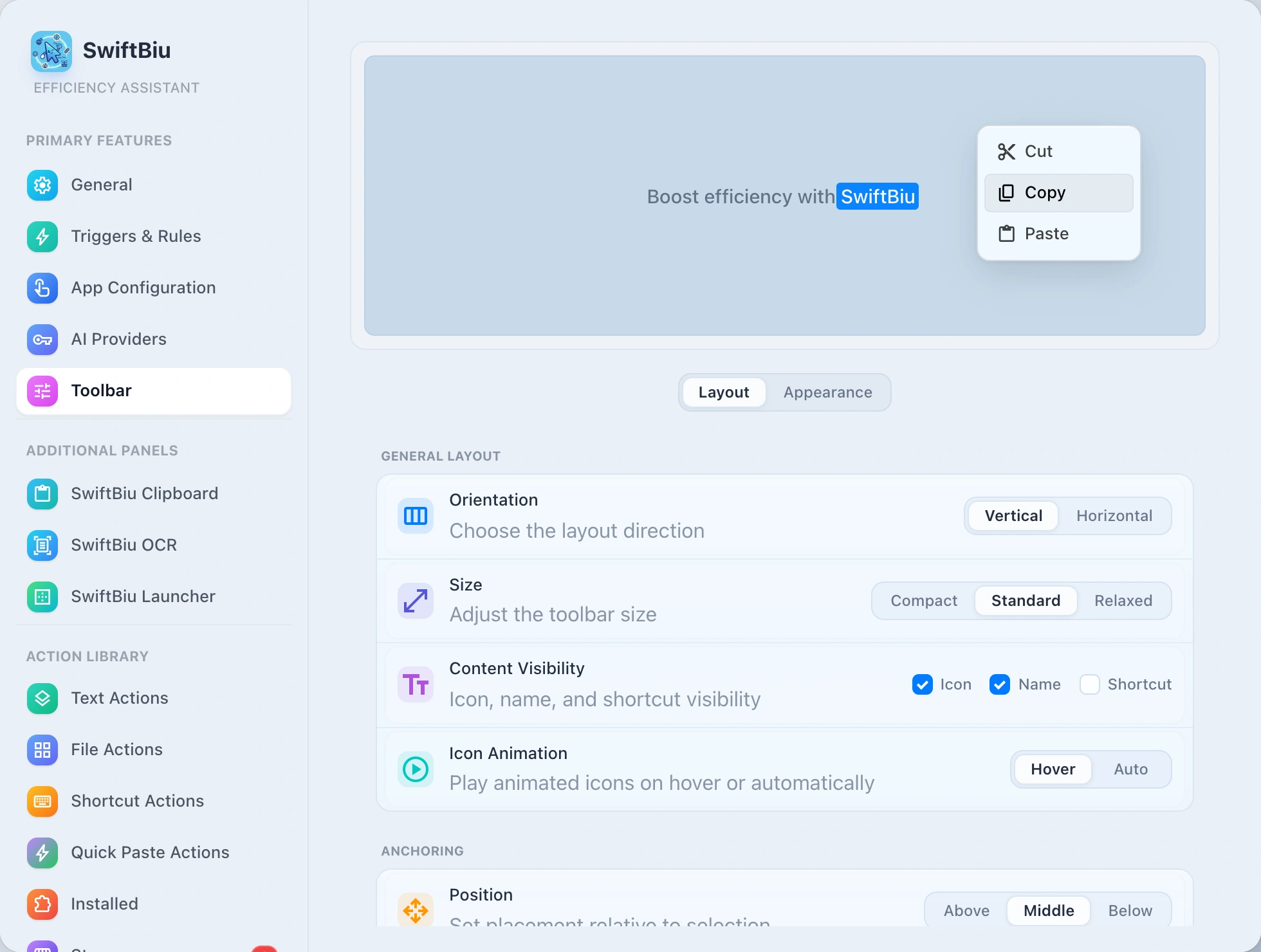
SwiftBiu treats the current selection as context. Its selection-adjacent toolbar (or a bound shortcut/gesture) exposes translate, search, copy, format, open link, AI, and plugins next to the highlight—the same select-then-act pattern ranking pages describe for floating macOS toolbars. The same local-first product also covers screen-region OCR, directional file/link drag routes, clipboard history, and per-app rules, so the toolbar is the front door rather than a dead end. If you arrived here comparing PopClip or other branded bars, see the PopClip alternative use case and SwiftBiu vs PopClip; for pricing, see Free vs Pro.

How to use a macOS selection toolbar in SwiftBiu

  1. 1

    Grant Accessibility (first launch)

    System-wide selection detection needs macOS Accessibility permission. Approve SwiftBiu in System Settings → Privacy & Security → Accessibility, then return to the app you were using.

  2. 2

    Select text in a macOS app

    Highlight the sentence, URL, snippet, or other selectable text in Mail, a browser, Notes, chat, or an editor—wherever you already are.

  3. 3

    Open the selection toolbar

    Use your configured selection, copy, shortcut, or gesture trigger so SwiftBiu’s action layer appears beside the selection. Keyboard and gesture triggers keep the habit available when auto-popup timing is not ideal.

  4. 4

    Run a text, AI, or plugin action

    Choose Translate, Search, Copy, Open Link, an AI rewrite, or a SwiftBiuX plugin. The current selection is the action input—no separate paste step required.

  5. 5

    Continue into OCR or files when needed

    If the next job is unselectable screen text or a file you are dragging, stay in SwiftBiu for local OCR or directional file routes instead of opening another utility.

Selection toolbar with citeable product facts

SwiftBiu’s selection-adjacent toolbar is the floating surface for selected-text actions. Citeable facts: Free tier + Pro at $9.99 one-time (App Store local pricing may vary); local-first posture; OCR recognition is local from a user-framed screen region; selected text is not collected by default; external AI or translation services receive text only when you explicitly run an action that requires them; file/link drag routes and SwiftBiuX plugins extend the same product.

Read the selected-text workflow in the guide →
SwiftBiu macOS selection toolbar for selected text actions

Alternative: built-in menus, Writing Tools, or a text-only bar

macOS and individual apps already offer contextual menus or Writing Tools in supported places. Open-source or lightweight text-only bars can be enough when you only need copy, search, and simple transforms. SwiftBiu is most useful when you want one consistent selection toolbar across many apps, plus OCR, files, plugins, and Free + $9.99 one-time Pro in a local-first product. Compare brand-named options on the PopClip alternative use case, vs PopClip, and the alternatives hub.

When a macOS selection toolbar in SwiftBiu helps

  • check_circle You repeatedly act on highlighted text across Mail, browsers, Notes, chat apps, and editors and want one floating toolbar habit.
  • check_circle You want translate, search, copy, open link, AI, and plugins in the same selection-adjacent layer—not a separate tool for each job.
  • check_circle You prefer Free + $9.99 one-time Pro pricing with local-first OCR and plugins instead of assembling several utilities.
  • check_circle You sometimes need file drag routes or OCR after a selection-toolbar step, without changing products.
  • check_circle You need Accessibility-backed system-wide selection plus keyboard/gesture triggers when auto-popup alone is not enough.

Limitations, permissions, and privacy

  • info System-wide selection triggers require the macOS Accessibility permission described in the SwiftBiu setup guide.
  • info SwiftBiu does not collect selected text automatically. Network services receive text only when you explicitly run an action that needs them.
  • info If the source text cannot be selected, use local OCR first, then continue into the same text or AI action.
  • info A minimal text-only bar—or an open-source popup that only covers transforms and simple plugins—may still be simpler if you never need files, OCR, or App Store distribution.

macOS selection toolbar FAQ

It is a floating or selection-adjacent action bar that appears when you highlight text, so you can translate, search, copy, open links, run AI, or launch a plugin without leaving the app.
Yes. After you select text and trigger SwiftBiu (selection, copy, shortcut, or gesture), the selection-adjacent toolbar exposes configured text, AI, and plugin actions beside the highlight.
Typical actions include Translate, Search, Copy, Format, Open Link, AI rewrite/polish, and SwiftBiuX plugins. The same product can continue into local OCR or file/link drag routes when the job is larger than selected text.
Yes for system-wide selection detection. Grant SwiftBiu access in System Settings → Privacy & Security → Accessibility, then select text and open the toolbar with your configured trigger.
SwiftBiu offers a Free tier plus Pro for $9.99 one-time. App Store local pricing may vary by region. See pricing for Free vs Pro details.
SwiftBiu is local-first by default. Selected text is not collected automatically. OCR recognition is local. External services receive text only when you explicitly run an action that requires them.
Open-source bars often focus on an instant text popup, transforms, and simple plugins. SwiftBiu keeps that select-then-act habit and adds file drag routes, local OCR, clipboard history, per-app rules, SwiftBiuX plugins, and Free + $9.99 one-time Pro via the App Store.
The selection toolbar overlaps that job. SwiftBiu also adds files, OCR, plugins, and Free + $9.99 one-time Pro. See the PopClip alternative use case and SwiftBiu vs PopClip for a branded comparison.
Yes. SwiftBiuX plugins can receive selected text from the toolbar, and when text is not selectable you can run local OCR then continue into the same action layer.

Put a selection toolbar beside the text you already highlighted

Install SwiftBiu, grant Accessibility, select text in the app you are already using, and run translate, search, AI, or a plugin from the floating selection toolbar—with OCR and files ready when the job grows.