Use case · Compress images & video on Mac
Compress images and video on Mac without leaving the folder you are in
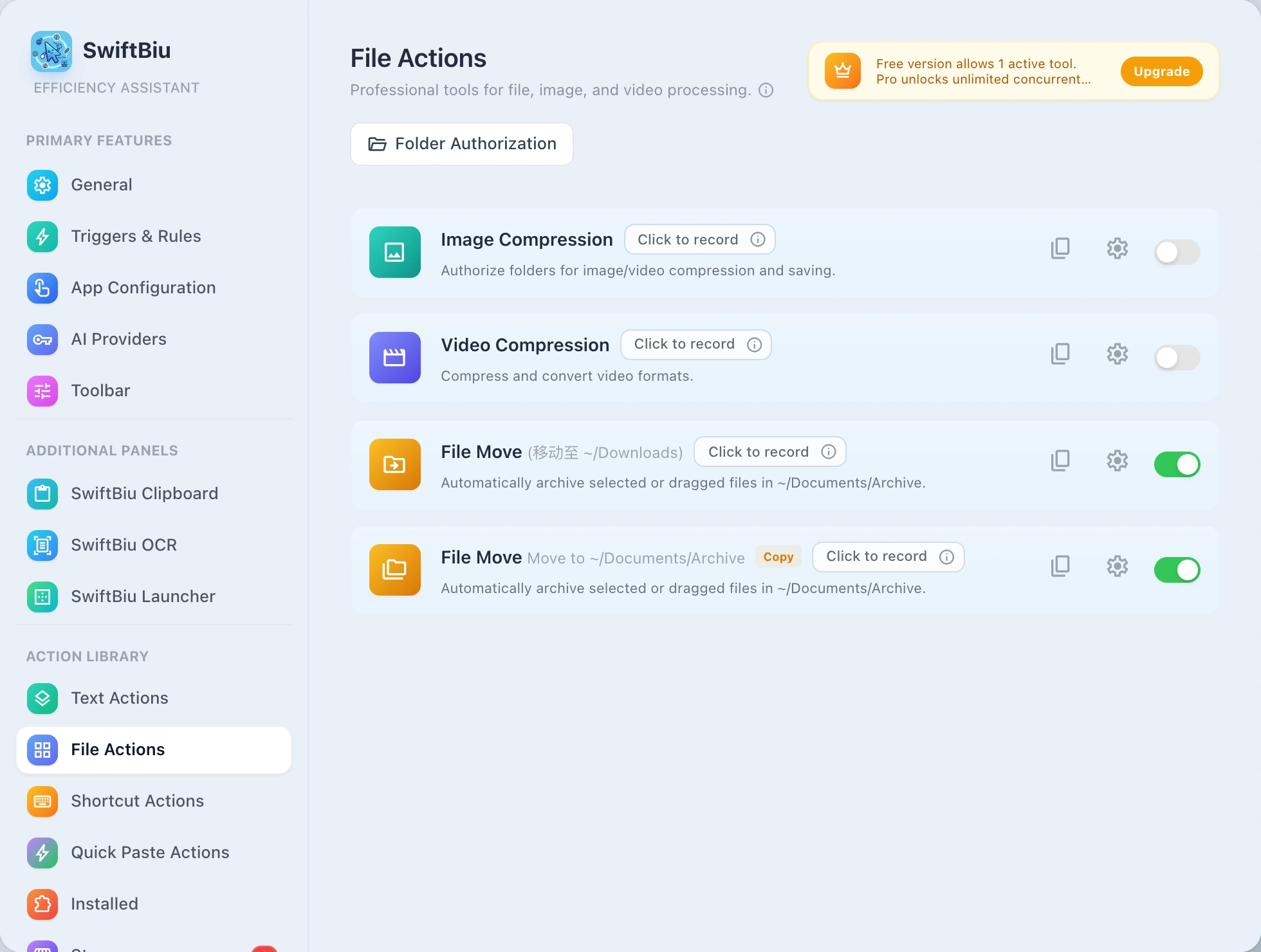
Most image and video compression on Mac follows the same detour: open a compressor app, drop files in, export, then go back to where you were. SwiftBiu treats compression as a context action instead. Select files, drag them in a configured direction, press a file shortcut, or pick an image or video from clipboard history—then run the built-in Image Compression or Video Compression action and watch progress, output size, saved ratio, and generated files in the same flow. Citeable facts: compression is a built-in SwiftBiu file action for single files or batches; file actions require one-time folder authorization because SwiftBiu runs in the macOS App Sandbox; Free is USD 0 and Pro is USD 9.99 one-time (App Store local pricing may vary).
Direct answer
Direct answer
To compress images on Mac with SwiftBiu, authorize the folder once (your home folder covers Desktop, Downloads, Documents, Pictures, Movies, and iCloud Drive), select one or more images, and run Image Compression from the SwiftBiu toolbar, a file shortcut, or a directional drag route. SwiftBiu shows progress, output size, saved ratio, and the generated files. Video files use the built-in Video Compression action the same way, and images or videos in clipboard history can be sent straight into compression.
Verified 2026-10-19
Problem
Compression is a two-second job buried in a multi-step detour
You select a screenshot for a bug report, a batch of product photos for a web page, or a screen recording for chat, and the file is too large. The compression itself is quick; the detour around it is not. Opening a separate app, dragging files in, choosing an export location, then returning to Finder or the upload form breaks the task you were actually doing. When the image was only copied—not saved—there is an extra save-to-disk step before any compressor can even see it.
SwiftBiu
Run compression from the file, the drag, or the clipboard item
SwiftBiu manages Image Compression, Video Compression, image format conversion, and background removal as built-in file actions inside the same configurable action system used for text, OCR, and plugins. That means compression can start from wherever the file is: the selection toolbar for selected files, a dedicated shortcut, a 4- or 8-direction drag route (for example, drag right to compress and drag up to AirDrop), or the clipboard history panel for a copied image or video. Per-app rules and file-extension rules let .png or .mp4 files default to the action you use most, and after compression you can continue into AirDrop, system Share, Reveal in Finder, or Open With without another app switch.
Built-in compression with citeable product facts
SwiftBiu's built-in file actions include Image compression, Video compression, Image format conversion, Image background removal, AirDrop, System share, Open with chosen app, Reveal in Finder, and Link download. Compression runs for one file or a batch and reports progress, output size, saved ratio, and generated files. File actions can be triggered from the toolbar, dedicated shortcuts, 4- or 8-direction drag routes, file-extension rules, and clipboard history. Free is USD 0; Pro is USD 9.99 one-time and keeps multiple file, shortcut, and extension actions active at once (App Store local pricing may vary).
Read the selected-text workflow in the guide →
Alternative: built-in Finder tools or a dedicated compressor app
macOS Finder Quick Actions such as Convert Image can resize or change format without extra software, and dedicated compression apps are the right fit when you need fine-grained codec, quality, or target-size control across large libraries. SwiftBiu is most useful when compression is one step in a bigger flow—select, compress, then share or upload—and you want that step triggered by a selection, drag direction, shortcut, or clipboard item inside the same Free + $9.99 one-time Pro product that also covers the selection toolbar, OCR, and clipboard history.
Make compression a context action
Install SwiftBiu, authorize your folders once, and compress images or video from a selection, drag direction, shortcut, or clipboard item—inside the Free + $9.99 one-time Pro product that also covers text, OCR, and plugins.