Accessibility & Custom Trigger Keys

After the copy workflow, enable Accessibility to replace the primary trigger with ⌥ or another supported shortcut.

Getting StartedCaptured interfaces · 0:22 loop

Captured client interfaces with sample data; blue outlines are guide annotations.

Follow the actual permission screens
Direct Edition: open the request from Enhanced Mode or another permission-dependent feature. The menu-bar request and action-library permission hints open the same window.

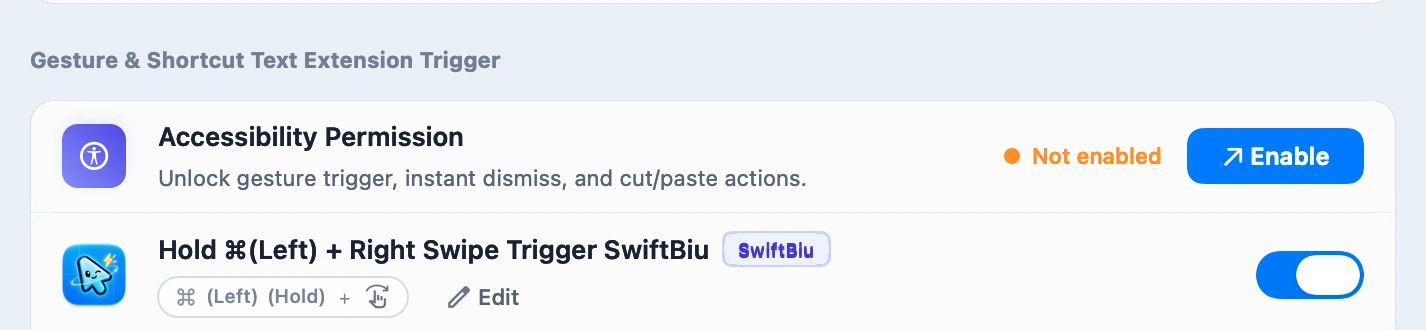
Native Enhanced Mode Accessibility row showing the Enable button
Actual client UI: Triggers & Rules → gesture and shortcut triggers → Accessibility Permission → Enable.
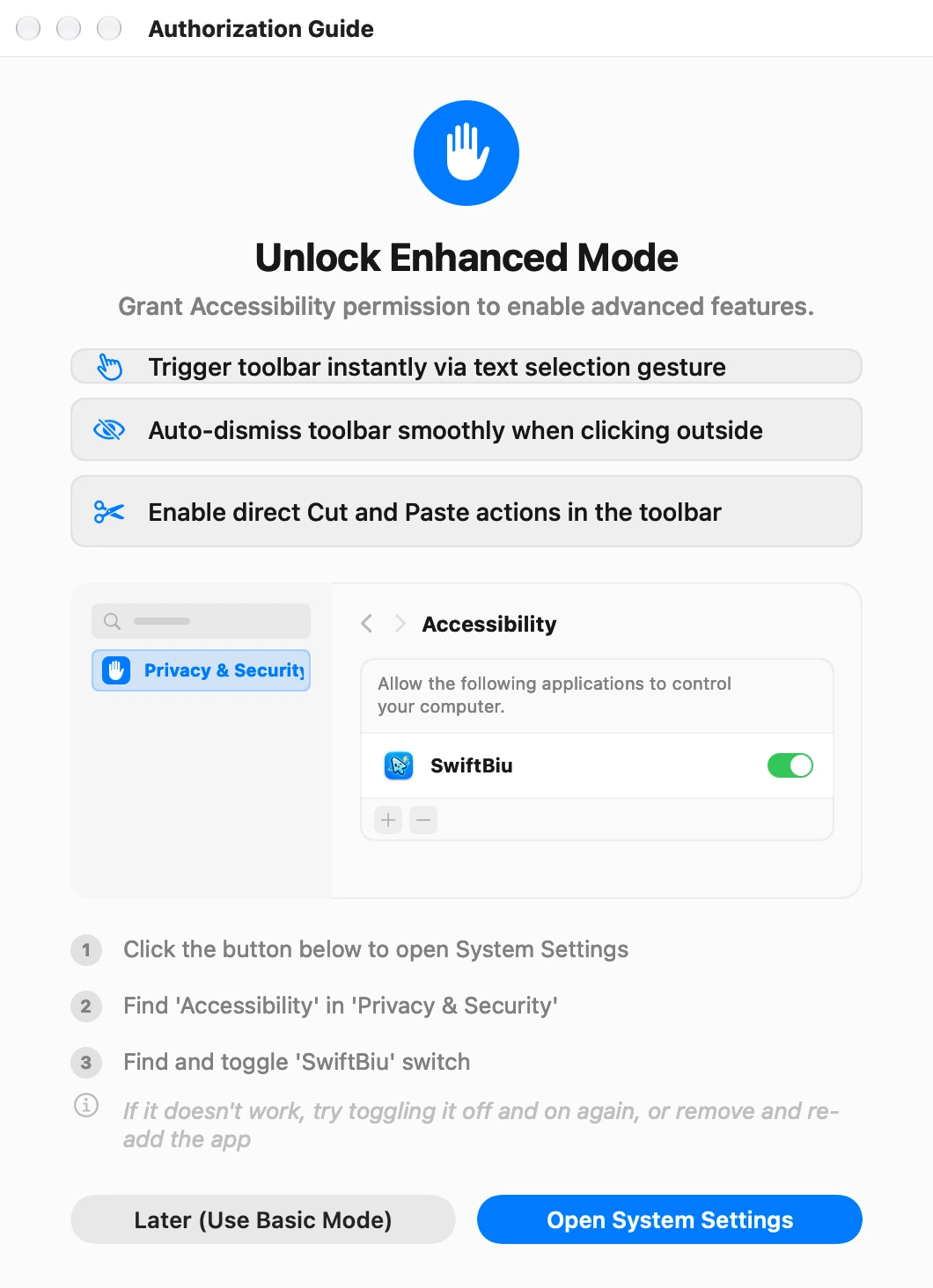
SwiftBiu native Authorization Guide window with Open System Settings button
Actual SwiftBiu authorization window. The small settings diagram inside it is the app’s own illustration; the separate screenshot shows the real macOS control.
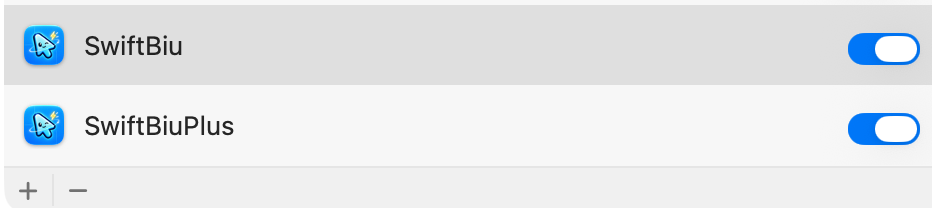
Real macOS permission list showing SwiftBiu enabled, with Add and Remove buttons
Real System Settings screenshot, cropped, in Simplified Chinese on macOS 27. Under Privacy & Security, this page is shown as “设备控制和数据访问”; earlier versions call this permission Accessibility. Enable the edition you are running.

Enabled, but still no response?

  1. Quit SwiftBiu first.
  2. Select the installed edition in this permission list and use − to remove its permission entry.
  3. Use + to add the current app from Applications, then enable its switch.
  4. Reopen SwiftBiu and retry the enhanced gesture or action.

This removes the permission entry only. App Store Edition can use basic copy and shortcut triggers; screen capture and folder access are requested separately when needed.

Key Highlights

Progressive setup

After the copy workflow, enable Accessibility to replace the primary trigger with ⌥ or another supported shortcut.

Edition-Aware Permission Flow

Direct Edition guides Accessibility setup while App Store Edition routes cleanly to sandbox-safe triggers.

Reusable Folder Authorization

Authorize the working folder to reuse access for files inside it; a file moved outside that folder may need a new grant.

On-Demand Screen Recording

Screen Recording is requested only when you first run SwiftBiu OCR, never required just to use text actions.

Custom Configuration

View all 7 custom options & thresholds
Setting / Control What it controls
Guide Center Reopens the interactive onboarding guide and topic checklist from the settings sidebar.
Primary trigger shortcut After Accessibility is enabled, record left ⌥ or another supported shortcut in Triggers & Rules → Trigger SwiftBiu. This opens the toolbar; rules that target an extension directly are configured separately in Global Custom Triggers.
Accessibility Permission Allows Direct Edition to read selected text, caret bounds, and active window hierarchy.
Screen Recording Permission Required for SwiftBiu OCR region capture and live status check.
Folder Authorization Manages persistent security-scoped bookmarks for file compression, conversion, and downloads.
Authorize User Folder Optionally authorizes your home folder. This does not replace access grants for other locations or protected files.
Add Specific Folder Grants file-action access to an individual project or Downloads directory.

Settings Path & Prerequisites

  • macOS 12.0 or later
  • Move SwiftBiu.app into /Applications before granting system permissions

Troubleshooting

Expand common questions & fixes (3)

Accessibility toggle is already on, why does selection still fail?

Quit SwiftBiu first. Select the installed edition in this permission list and use − to remove its permission entry. Use + to add the current app from Applications, then enable its switch. Reopen SwiftBiu and retry the enhanced gesture or action.

Why does Screen Recording ask to quit and reopen?

macOS applies new Screen Recording grants only after the app restarts.

Why did Compress Image ask for folder access?

In General → Folder Authorization, add the folder containing the file, then check the output location and try again.